What is Amazon EC2 and why is its scalability important?
Amazon EC2 (Elastic Compute Cloud) is a core AWS service that provides flexible, scalable compute capacity in the cloud. Scalability is crucial because it allows you to dynamically adjust resources based on demand, ensuring optimal performance and cost-efficiency for workloads ranging from web hosting to machine learning. EC2's scalability supports dynamic resource allocation, cost optimization, high availability, and performance tuning.
What are the key components of Auto Scaling in EC2?
The main components are Auto Scaling Groups (ASGs), Launch Configurations/Launch Templates, Scaling Policies, Health Checks, and Lifecycle Hooks. ASGs manage the scaling lifecycle, Launch Templates define instance configurations, Scaling Policies determine when to scale, Health Checks monitor instance health, and Lifecycle Hooks allow custom actions during instance launch or termination.
How does EC2 Auto Scaling work in practice?
EC2 Auto Scaling monitors real-time metrics and triggers scaling events based on predefined policies. When thresholds are crossed, it launches or terminates instances, spreads them across Availability Zones, and integrates with Elastic Load Balancers to distribute traffic evenly. Health checks ensure only healthy instances serve traffic.
How does EC2 Auto Scaling interact with Elastic Load Balancing (ELB)?
When new EC2 instances are launched, they are automatically registered with the Elastic Load Balancer (ELB), which distributes traffic evenly across all healthy instances. This integration maintains stable performance even as the number of instances changes.
Can EC2 Auto Scaling be used with non-EC2 resources like Lambda or Fargate?
No, EC2 Auto Scaling is designed specifically for EC2 instances. While you can connect EC2-based architectures with Lambda or Fargate via services like ECS or Step Functions, those services have their own auto scaling mechanisms. EC2 Auto Scaling does not scale Lambda or Fargate tasks directly.
How does EC2 Auto Scaling handle scaling for multi-region applications?
EC2 Auto Scaling operates within a single AWS region. For multi-region applications, you need to set up separate Auto Scaling groups in each region and use services like Route 53 or AWS Global Accelerator to route traffic across regions, maintaining high availability and regional scaling.
Can EC2 Auto Scaling adjust instance types based on workload demands?
By default, EC2 Auto Scaling adjusts the number of instances, not their types. However, using Mixed Instance Policies, you can include multiple instance types in an Auto Scaling group, allowing AWS to select the most cost-efficient or available instance for scaling.
What are the main benefits of using EC2 Auto Scaling?
EC2 Auto Scaling ensures dynamic resource allocation, cost optimization, high availability, fault tolerance, and performance tuning. It automatically adjusts capacity to match demand, replaces unhealthy instances, and integrates with ELB for even traffic distribution.
What are common problems with EC2 Auto Scaling and how can they be fixed?
Common issues include inconsistent scaling across Availability Zones, incorrect instance types, and rapid scaling events. Solutions involve enabling multi-AZ scaling, right-sizing instances, using mixed instance types, setting cooldown periods, and implementing step or scheduled scaling.
How can I optimize EC2 Auto Scaling costs during predictable traffic periods?
Scheduled Scaling is recommended for predictable demand. It allows you to scale down during off-peak hours and scale up before peak times, ensuring capacity matches expected traffic and reducing unnecessary costs.
Pricing & Cost Optimization
What are the main cost factors in EC2 Auto Scaling?
The main cost factors include EC2 instance costs (type, size, pricing model, and uptime), Elastic Load Balancer (ELB) usage, CloudWatch metrics and alarms, data transfer (especially inter-AZ or cross-region), and the frequency of scaling events. Optimizing these factors helps control AWS spending.
How can I reduce EC2 instance costs in Auto Scaling?
Use Reserved Instances for predictable workloads and Spot Instances for flexible or non-critical tasks. Right-size instances based on workload needs and configure mixed instance types to maximize cost efficiency.
How do ELB costs impact EC2 Auto Scaling, and how can they be optimized?
ELB costs are based on usage hours and data processed. To optimize, consolidate load balancers where possible, choose the right ELB type (ALB or NLB), and route multiple Auto Scaling groups through a single ELB to reduce costs.
How can I control CloudWatch metrics and alarm costs in EC2 Auto Scaling?
Track only essential metrics that impact scaling, consolidate alarms by grouping similar metrics, and use free default CloudWatch metrics for EC2 whenever possible to avoid unnecessary custom metric charges.
What strategies help minimize data transfer costs in EC2 Auto Scaling?
Keep instances within a single Availability Zone when possible, optimize cross-AZ load balancing, and use VPC Peering or Transit Gateway for cross-region or multi-VPC communication to reduce data transfer fees.
How can I avoid unnecessary scaling events and related costs?
Set cooldown periods to prevent rapid, unnecessary scaling actions, implement step scaling for smoother adjustments, and use scheduled scaling for predictable workloads to avoid abrupt changes and reduce operational costs.
How does Sedai help optimize EC2 Auto Scaling costs?
Sedai dynamically rightsizes instances and scales them based on real workload consumption, delivering over 30% reduced cloud costs. It proactively predicts demand, adjusts scaling policies, and eliminates overprovisioning, helping you maintain optimal performance while minimizing spend. Use the Sedai ROI calculator to estimate your potential savings.
Features & Capabilities
What is Sedai and how does it relate to EC2 Auto Scaling?
Sedai is an autonomous cloud management platform that optimizes EC2 Auto Scaling by continuously learning from workload telemetry, predicting demand, and proactively adjusting instance counts, types, and scaling policies. This results in improved performance, reduced costs, and less manual intervention for engineering teams.
How does Sedai improve EC2 Auto Scaling performance?
Sedai delivers instance-level rightsizing, real-time demand prediction, and automatic remediation of scaling issues. It reduces cloud costs by over 30%, improves application performance by up to 75%, and supports 6× higher engineering productivity by automating scaling and configuration tasks.
What unique features does Sedai offer for EC2 Auto Scaling optimization?
Sedai provides autonomous optimization, proactive issue resolution, application-aware intelligence, and self-driving automation. It continuously tunes scaling rules, cooldown windows, and instance types, and resolves scaling issues without human intervention, supporting large-scale AWS environments.
How does Sedai's predictive scaling differ from traditional EC2 Auto Scaling?
Traditional EC2 Auto Scaling relies on static thresholds or scheduled scaling, which may not align with real workload patterns. Sedai uses machine learning to analyze telemetry, predict demand spikes, and proactively adjust scaling, making the process predictive and self-correcting rather than reactive.
What are the modes of operation in Sedai?
Sedai offers three modes: Datapilot (observability), Copilot (one-click optimizations), and Autopilot (fully autonomous execution). These modes provide flexibility for different operational needs and levels of automation.
Does Sedai support integration with other cloud management tools?
Yes, Sedai integrates with monitoring and APM tools (Cloudwatch, Prometheus, Datadog, Azure Monitor), Kubernetes autoscalers (HPA/VPA, Karpenter), IaC and CI/CD tools (GitLab, GitHub, Bitbucket, Terraform), ITSM platforms (ServiceNow, Jira), notification tools (Slack, Microsoft Teams), and various runbook automation platforms.
How does Sedai ensure safe and compliant cloud optimization?
Sedai is SOC 2 certified, demonstrating adherence to stringent security and compliance standards. It integrates with Infrastructure as Code (IaC), IT Service Management (ITSM), and compliance workflows to ensure all changes are safe, auditable, and reversible. Learn more on the Sedai Security page.
Use Cases & Benefits
Who can benefit from using Sedai for EC2 Auto Scaling?
Sedai is ideal for platform engineers, IT/cloud operations teams, technology leaders, site reliability engineers (SREs), and FinOps professionals in organizations with significant cloud operations. It is especially valuable for companies seeking to optimize costs, performance, and reliability in multi-cloud environments.
What business impact can customers expect from using Sedai?
Customers can achieve up to 50% cloud cost reduction, 75% latency reduction, 6× productivity gains, and 50% fewer failed customer interactions. Real-world examples include Palo Alto Networks saving $3.5 million and KnowBe4 achieving 50% cost savings in production. See more on the Sedai resources page.
What industries have benefited from Sedai's EC2 Auto Scaling optimization?
Sedai's case studies span cybersecurity (Palo Alto Networks), IT (HP), financial services (Experian, CapitalOne), security awareness training (KnowBe4), travel (Expedia), healthcare (GSK), car rental (Avis), retail/e-commerce (Belcorp), SaaS (Freshworks), and digital commerce (Campspot). See all case studies on the Sedai resources page.
Can you share specific success stories of Sedai customers using EC2 Auto Scaling optimization?
Yes. KnowBe4 achieved 50% cost savings and saved $1.2 million on AWS bills. Palo Alto Networks saved $3.5 million, reduced Kubernetes costs by 46%, and saved 7,500 engineering hours. Belcorp reduced AWS Lambda latency by 77%. See more case studies at Sedai resources.
What pain points does Sedai address for EC2 Auto Scaling users?
Sedai addresses overprovisioning, manual scaling toil, performance bottlenecks, reactive issue resolution, multi-cloud complexity, and misaligned priorities between engineering and FinOps. It automates optimization, aligns cost and performance goals, and reduces operational overhead.
How easy is it to implement Sedai for EC2 Auto Scaling optimization?
Sedai offers a plug-and-play implementation that takes just 5 minutes for general use cases and up to 15 minutes for scenarios like AWS Lambda. It uses agentless integration via IAM, provides personalized onboarding, and offers a 30-day free trial. See Sedai's getting started page for details.
What feedback have customers given about Sedai's ease of use?
Customers praise Sedai for its quick setup (5–15 minutes), agentless integration, comprehensive onboarding support, detailed documentation, and risk-free 30-day trial. These features contribute to a smooth and efficient adoption process. See more at Sedai's getting started page.
Competition & Differentiation
How does Sedai differ from traditional EC2 Auto Scaling solutions?
Sedai offers 100% autonomous optimization, proactive issue resolution, and application-aware intelligence, whereas traditional solutions rely on static rules and manual adjustments. Sedai's predictive scaling, release intelligence, and plug-and-play setup provide a holistic, user-friendly approach to cloud optimization.
What advantages does Sedai provide for different user segments?
Platform engineers benefit from reduced toil and IaC consistency; IT/cloud ops teams see lower ticket volumes and safer automation; technology leaders gain measurable ROI and cost savings; FinOps teams align engineering and cost goals; SREs experience fewer alerts and automated scaling. Sedai tailors its value to each role's needs.
What makes Sedai's approach to EC2 Auto Scaling unique?
Sedai's approach is unique due to its autonomous, application-aware optimization, predictive scaling, and enterprise-grade governance. It continuously learns from workload telemetry, proactively resolves issues, and integrates with compliance workflows, setting it apart from competitors focused on manual or reactive solutions.
What certifications does Sedai hold for security and compliance?
Sedai is SOC 2 certified, demonstrating its commitment to high standards of security and compliance. This certification ensures adherence to industry requirements for data protection and operational integrity. See more on the Sedai Security page.
Technical Requirements & Support
Where can I find technical documentation for Sedai?
Comprehensive technical documentation is available at docs.sedai.io/get-started. Additional resources, including case studies and datasheets, are available at sedai.io/resources.
What onboarding and support options does Sedai provide?
Sedai offers personalized onboarding sessions, a dedicated Customer Success Manager for enterprise customers, detailed documentation, a community Slack channel, and email/phone support. Customers can also schedule one-on-one onboarding calls with Sedai's engineering team for tailored assistance.
Does Sedai offer a free trial for EC2 Auto Scaling optimization?
Yes, Sedai offers a 30-day free trial, allowing users to experience the platform's value firsthand without financial commitment. Sign up at Sedai's signup page.
Who are some of Sedai's notable customers?
Sedai is trusted by leading organizations such as Palo Alto Networks, HP, Experian, KnowBe4, Expedia, CapitalOne Bank, GSK, and Avis. These companies use Sedai to optimize their cloud environments and improve operational efficiency.
Optimizing EC2 Auto Scaling performance and cost requires a solid understanding of key components like scaling policies, health checks, and instance lifecycle management. By fine-tuning settings like scaling increments, cooldown periods, and multi-AZ distribution, you can significantly improve efficiency. Tools like Sedai automate the process, ensuring real-time scaling adjustments that align with workload demands, helping you maintain optimal performance while keeping costs under control.
EC2 fleets running either too hot or mostly idle are among the clearest signs that your scaling strategy isn’t aligned with actual workload behavior.
Many teams still rely on static assumptions or broad rules that don’t adapt to changing demand, leading to performance issues during traffic peaks and unnecessary spend when workloads quiet down.
This pattern appears across many AWS environments. AWS data shows that EC2 instances averaging below 40% CPU and memory usage over four weeks are typically oversized.
That level of over-provisioning represents a significant opportunity to improve how capacity is allocated. This is where EC2 Auto Scaling helps restore balance.
When it’s configured well, it uses live workload signals to adjust capacity in real time, keeping applications stable while reducing waste from idle compute.
In this blog, you’ll explore how Auto Scaling in EC2 works, the strategies that help you get it right, and why misconfiguring it can affect performance and reliability.
EC2 rightsizing works when it happens continuously, not quarterly. Book a demo to see how Sedai keeps your instances right-sized based on real workload behavior.
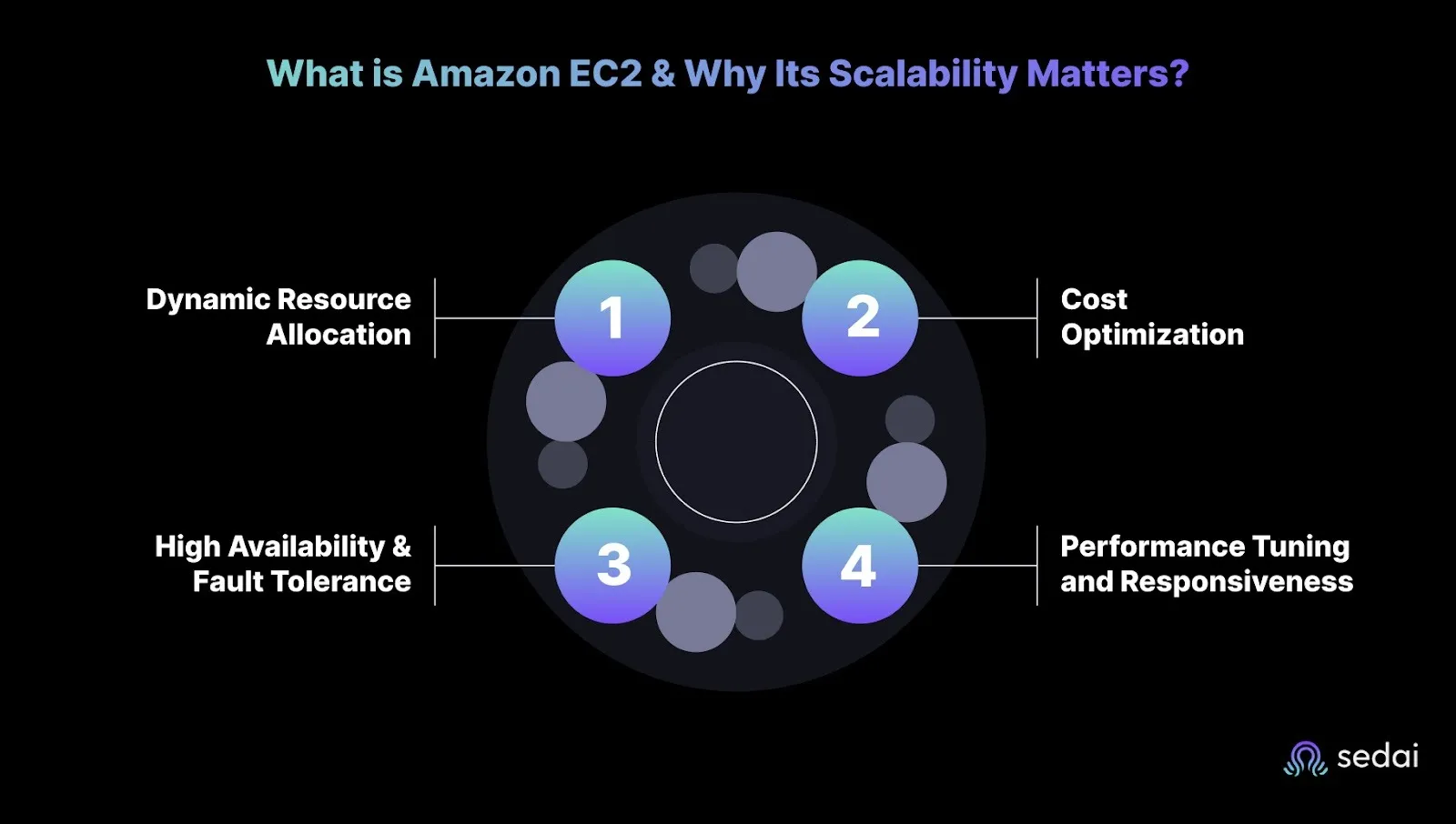
What is Amazon EC2 & Why Its Scalability Matters?
Amazon EC2 (Elastic Compute Cloud) is one of AWS’s core services, offering flexible and scalable compute capacity in the cloud. It lets you run virtual servers, called instances, on demand without investing in physical hardware.
These instances can be customized based on specific CPU, memory, and storage requirements. This makes EC2 an excellent fit for everything from simple web hosting to high-performance workloads like data processing and machine learning. Here’s why Amazon EC2 scalability matters:
1. Dynamic Resource Allocation
EC2 enables you to scale instances up or down based on demand, ensuring the right amount of compute power is available at any time. This supports optimal performance and cost-efficiency.
2. Cost Optimization
EC2 helps you keep costs under control by provisioning resources only when they’re needed. With options such as On-Demand, Reserved, and Spot instances, your team can choose the most economical option for each workload.
This flexibility makes it easier to use resources wisely and avoid paying for unused capacity.
EC2 scalability also strengthens application reliability by distributing instances across multiple Availability Zones. With Auto Scaling, unhealthy instances can be automatically replaced, allowing applications to run smoothly with minimal downtime risk.
4. Performance Tuning and Responsiveness
EC2 scalability ensures resources match demand, helping maintain performance while avoiding unnecessary costs.
Auto Scaling works hand in hand with Elastic Load Balancing to distribute traffic evenly across instances. This helps maintain fast, consistent performance even during peak activity.
To understand how scaling actually works in practice, you need to look at the core components that enable EC2 to scale effectively.
Key Components of Auto Scaling in EC2
Auto Scaling in EC2 is a key capability for managing cloud infrastructure efficiently. It automatically adjusts the number of instances based on real-time demand, ensuring the environment always has the right amount of compute power.
Below are the key components of auto scaling in EC2.
1. Auto Scaling Groups (ASGs)
Auto Scaling Groups (ASGs) handle the entire scaling lifecycle of EC2 instances within your defined capacity limits. They ensure the right number of instances are always running based on demand and automatically replace any that fail.
Key features include:
Scaling Policies: Configure when to scale in or out using CloudWatch metrics, such as CPU utilization, or your own custom metrics.
Minimum and Maximum Size: Set boundaries for how few or how many instances your environment should run to avoid unnecessary spending or over-scaling.
Multi-Zone Distribution: Automatically spreads instances across AZs to improve resilience and reduce the risk of downtime.
Integration with ELB: Works smoothly with Elastic Load Balancers to route traffic evenly across healthy instances.
2. Launch Configurations/Launch Templates
Launch Configurations and Launch Templates define how your EC2 instances are configured within an ASG. They specify everything from the instance type and AMI to security groups and key pairs.
Key features include:
Versioning with Launch Templates: Launch Templates allow you to maintain multiple versions so you can update configurations without affecting existing setups.
Flexible Instance Configuration: Define important elements like IAM roles, Elastic IPs, user data, and block device mappings for complete customization.
Compatibility with ASGs: Both Launch Templates and Launch Configurations ensure that all instances in an Auto Scaling group follow the same configuration.
3. Scaling Policies
Scaling policies determine when and how auto scaling changes the instance count in an ASG. These policies monitor metrics such as CPU or memory usage and trigger scaling actions when thresholds are crossed.
Key features include:
Dynamic Scaling: Automatically adjusts instance counts based on real-time performance metrics like CPU or memory.
Predictive Scaling: Looks at historical data to forecast upcoming demand and scale ahead of time.
Step Scaling: Lets you set multiple thresholds to trigger different scaling responses, such as adding one instance for a mild spike and two for a larger spike.
Target Tracking Scaling: Define a target metric (like maintaining CPU at 50%), and Auto Scaling continuously adjusts to keep it there.
4. Health Checks
Health checks monitor the operational status of instances within an ASG. Only healthy instances remain in rotation, and any unhealthy ones are automatically replaced.
Key features include:
EC2 Health Checks: Monitors the underlying EC2 instance status and terminates any that aren’t functioning correctly.
ELB Health Checks: Uses ELB health data to ensure instances are fully ready to handle traffic before they’re considered active.
Grace Periods: Allows you to define a warm-up period for instances so they aren’t marked unhealthy during temporary spikes or startup delays.
5. Lifecycle Hooks
Lifecycle hooks enable you to run custom actions when instances launch or terminate in an ASG. They’re invaluable for tasks like syncing data, configuring services, or cleaning up before an instance is removed.
Key features include:
Pre-Launch Actions: Run scripts or commands to configure security settings, dependencies, or custom software before an instance joins the group.
Pre-Termination Actions: Execute cleanup tasks, save logs, or persist important data before an instance is shut down.
Extended Instance Initialization: Keep instances in a pending state long enough for initialization steps to finish before they start serving traffic.
Once you understand the core components of EC2 Auto Scaling, it becomes easier to see how they work together during the scaling process.
How Does EC2 Auto Scaling Work?
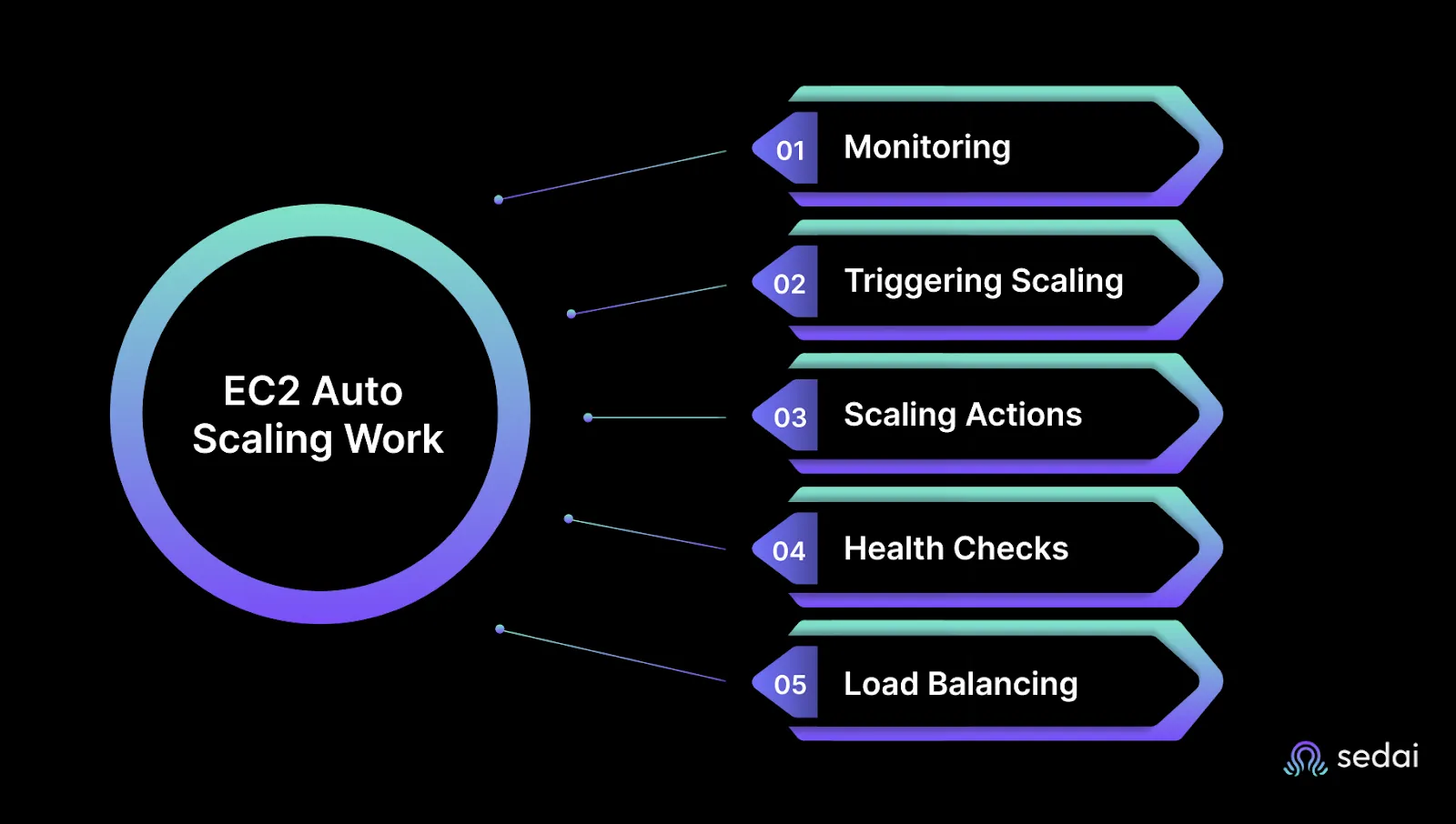
EC2 Auto Scaling automatically adjusts the number of EC2 instances in your Auto Scaling Group (ASG) based on predefined scaling policies. This ensures your application can smoothly handle changes in demand. Here’s how EC2 Auto Scaling actually works:
1. Monitoring
Auto Scaling uses metrics to track instance performance in real time. If these metrics exceed or fall below your configured thresholds, the appropriate scaling action will be triggered immediately.
2. Triggering Scaling Events
Based on the scaling policies you’ve configured, Auto Scaling groups decide when to add or remove EC2 instances. For example, if CPU utilization remains above 80 percent for a set period, the system will trigger a scale-out event to handle the increased load.
3. Scaling Actions
Once a scaling event is triggered, EC2 Auto Scaling launches new instances or terminates unhealthy ones. It also spreads instances across multiple Availability Zones (AZs) to maintain high availability and reduce the risk of downtime.
4. Health Checks
Auto Scaling uses the metrics, health checks, and ELB integration described earlier to trigger scaling events automatically.
5. Load Balancing Integration
When new instances come online, they’re automatically registered with an Elastic Load Balancer (ELB). The ELB ensures traffic is evenly distributed across all healthy instances, improving performance and reliability.
Once you know how EC2 Auto Scaling operates behind the scenes, it becomes easier to apply techniques that improve its overall performance.
Smart Techniques to Improve EC2 Auto Scaling Performance
EC2 Auto Scaling is great for automatically adding or removing instances based on demand, but getting the best results takes more than just turning it on.
One key technique is Predictive Scaling, which uses historical load patterns (usually from the past 14 days) to forecast upcoming demand. This allows EC2 to launch instances ahead of traffic spikes, ensuring your applications stay responsive while avoiding reactive scale‑outs that can lag behind peak usage.
To truly optimize performance and control costs, you need to refine how scaling decisions are made. Here are some smart practices you can use to improve EC2 Auto Scaling performance:
1. Implement ELB Health Checks and Auto Scaling Integration
Integrating ELB health checks with Auto Scaling ensures that only healthy instances receive traffic. You should configure health-check grace periods so that new instances aren’t terminated before they finish initializing.
This setup maintains smooth traffic distribution and helps prevent performance issues caused by unhealthy or partially ready instances.
Tip: Periodically test the health-check configuration under simulated failures to confirm unhealthy instances are removed without affecting live traffic.
2. Optimize Instance Warm-Up Times
Fine-tuning warm-up times ensures that newly launched instances are fully ready before they start handling live traffic. You should align warm-up times with actual application initialization needs to avoid delays or throttling during traffic spikes.
Setting the right warm-up window improves responsiveness and gives users a smoother experience during scale-outs.
Tip: Reassess warm-up times after major application updates, as initialization patterns may change, affecting performance during scale-outs.
3. Implement Auto Scaling with Auto Recovery for Fault Tolerance
Auto Recovery helps maintain high availability by automatically replacing impaired instances without requiring manual action. You should configure instance health checks and pair them with Auto Recovery and Auto Scaling to maintain capacity at all times.
Tip: Combine Auto Recovery with monitoring alerts to get proactive notifications of repeated instance failures, helping you identify potential underlying issues.
As you apply techniques to improve scaling performance, it’s equally important to be aware of the common issues that can affect EC2 Auto Scaling and how to address them effectively.
Book a Sedai demo to automate scaling decisions, reduce AWS costs, and improve application performance.
Common EC2 Auto Scaling Problems & Ways to Fix Them
EC2 Auto Scaling is a powerful way to keep your cloud environment running smoothly while controlling costs. But even the best automated systems can run into issues that limit their effectiveness.
Spotting these challenges early and applying the right fixes ensures your infrastructure stays responsive, efficient, and cost-effective. Below are some common EC2 Auto Scaling issues and techniques to fix them.
Problems
Solutions
Inconsistent Scaling Across AZs
Enable multi-AZ scaling and set capacity limits per zone to balance instances across AZs.
Incorrect Instance Types
Right-size instances based on workload needs and configure mixed instance types in Auto Scaling.
Once you understand the common issues and how to resolve them, it becomes easier to look at how the scaling activities influence costs and the steps you can take to keep them under control.
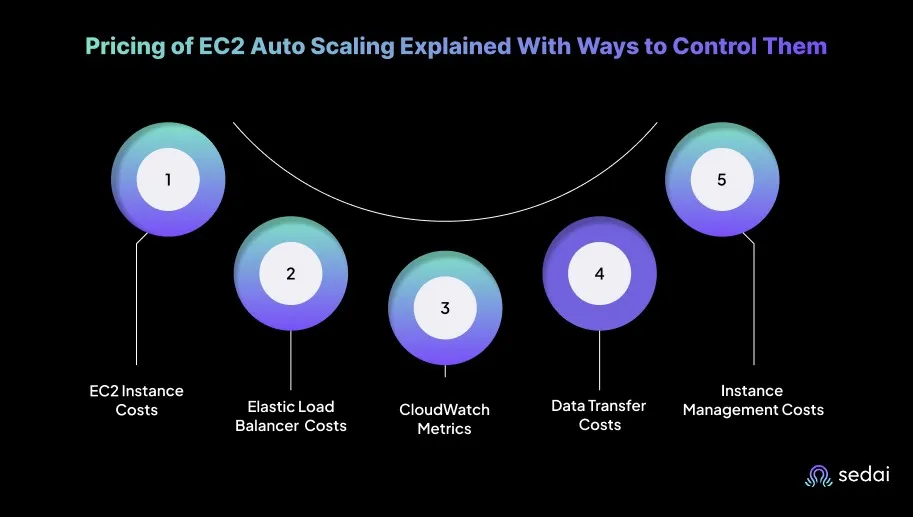
Pricing of EC2 Auto Scaling Explained With Ways to Control Them
EC2 Auto Scaling helps optimize cloud resource management, but understanding the underlying costs is essential to keeping AWS spending under control.
Below is a breakdown of each cost factor along with practical strategies to optimize costs while maintaining performance.
1. EC2 Instance Costs
The highest cost in EC2 Auto Scaling comes from the instances launched within your Auto Scaling group. These expenses vary based on instance type, size, pricing model (On-Demand, Reserved, or Spot), and the duration the instances remain active.
Key cost optimization strategies include:
Use Reserved Instances: For stable, long-running workloads, Reserved Instances offer significant savings. They are ideal when your scaling behavior follows predictable patterns.
Use Spot Instances: For workloads that can tolerate interruptions, Spot Instances provide major savings, up to 90% compared to On-Demand. They’re a great fit for flexible or non-critical tasks.
ELBs distribute traffic across EC2 instances, and costs are based on usage hours and the volume of processed data. As instance count and traffic increase, so do ELB charges.
Key cost optimization strategies include:
Consolidate Load Balancers: Where possible, use fewer ELBs by routing multiple Auto Scaling groups through a single load balancer. This helps reduce hourly and data processing costs.
Choose the Right ELB Type: ALBs or NLBs may offer better performance at a lower cost, depending on your application’s traffic patterns and protocol requirements.
3. CloudWatch Metrics and Alarms Costs
CloudWatch powers Auto Scaling decisions, but custom metrics and alarms come with additional charges. The cost depends on the number of custom metrics and alarms configured.
Key cost optimization strategies include:
Track Only Essential Metrics: Focus on the metrics that directly impact scaling, like CPU utilization, request latency, and queue depth, rather than monitoring everything.
Consolidate Alarms: Reduce the number of alarms by grouping similar metrics. For example, use a single alarm to monitor overall ASG utilization instead of creating one per instance.
Use Free Default Metrics: CloudWatch provides several free basic metrics for EC2. Rely on these whenever possible to avoid unnecessary custom metric charges.
4. Data Transfer Costs
Inter-AZ or cross-region data transfer can significantly increase costs. When Auto Scaling spans multiple Availability Zones, traffic between those zones is billed.
Key cost optimization strategies include:
Launch Instances in the Same AZ: Keep instances within a single AZ to avoid inter-AZ data transfer fees, unless multi-AZ redundancy is required.
Optimize Cross-AZ Load Balancing: If multi-AZ deployment is necessary, ensure ELB distributes traffic evenly so you don’t incur excessive data transfer charges between zones.
Use VPC Peering or Transit Gateway: For cross-region or multi-VPC communication, these options provide more cost-efficient routing.
5. Scaling Events and Instance Management Costs
Each scaling action (launch or termination) contributes to operational costs. Rapid scaling, especially when triggered unnecessarily, can increase spending.
Key cost optimization strategies include:
Use Cooldown Periods: Cooldowns prevent the Auto Scaling group from reacting too quickly to small, temporary spikes, reducing unnecessary scale-out or scale-in actions.
Implement Step Scaling: Step scaling allows you to scale in stages based on usage levels instead of making abrupt changes, ensuring smoother resource adjustments.
Use Scheduled Scaling: For predictable workloads, scheduled scaling helps you adjust capacity ahead of time, scaling down during off-peak hours and scaling up only when needed.
If you want to improve EC2 autoscaling efficiency with Sedai, use our ROI calculator to estimate the return on investment from optimized resource management, including cost savings and better performance.
How Sedai Improves EC2 Auto Scaling Performance?
Typical EC2 Auto Scaling setups rely on predefined thresholds or scheduled scaling windows, but these rules rarely align with how traffic actually behaves.
This mismatch often results in slow scale-ups during sudden spikes and unnecessary idle instances during quieter periods. Over time, engineers repeatedly tweak scaling policies, only to see performance drift and inefficiencies return.
Sedai removes this cycle by continuously learning from your EC2 workload telemetry, identifying usage patterns, and predicting when demand will rise or fall.
Instead of waiting for alarms to fire, Sedai adjusts instance counts, instance types, and lifecycle actions proactively, keeping environments responsive and efficient.
By acting before issues surface, Sedai turns scaling from a reactive process into a self-correcting system.
Here’s what Sedai delivers:
Instance-level rightsizing and scaling precision: Sedai dynamically adjusts instance sizes and counts based on real workload consumption, delivering 30%+ reduced cloud costs without sacrificing performance.
Real-time demand prediction for proactive scaling: Sedai analyzes historical load patterns, saturation signals, and failure risks to anticipate scale requirements in advance. This results in 75% better application performance.
Automatic remediation without human effort: Sedai detects scale-up delays, cooldown misconfigurations, unhealthy instances, or workload throttling and resolves them autonomously. These interventions support 70% fewer failed customer interactions (FCIs).
Self-driving automation that frees engineering capacity: Sedai updates scaling rules, tunes cooldown windows, recommends alternative instance families, and resolves scaling issues continuously. It contributes to 6× higher engineering productivity.
Enterprise-validated optimization across AWS fleets: Sedai operates at scale across thousands of instances and high-growth workloads, proven by $3B+ cloud spend managed for environments like Palo Alto Networks and Experian.
With Sedai, EC2 Auto Scaling becomes predictive instead of reactive. Instances scale smoothly, workloads stay stable, and idle capacity disappears, without engineers micromanaging configuration drift or tuning alarms.
If you’re improving EC2 Auto Scaling with Sedai, use our ROI calculator to estimate how much you could save by cutting over-provisioning, speeding up scale-up responsiveness, and removing manual tuning overhead.
Final Thoughts
While Auto Scaling in EC2 keeps your infrastructure responsive to changing demand, you unlock its full potential when you combine it with proactive monitoring and predictive analytics.
Machine learning tools can analyze past usage patterns and predict upcoming spikes, enabling you to scale ahead of time and avoid performance drops or unnecessary costs.
This is where Sedai improves your scaling strategy. By continuously reading real-time telemetry, Sedai predicts future resource needs and automatically adjusts your EC2 instances.
With Sedai’s autonomous optimization, scaling happens instantly and intelligently, keeping your environment optimized for both performance and cost without any manual effort.
The result is better performance today, while also building a foundation that supports long-term, efficient growth. Gain full visibility into your EC2 environment and reduce wasted spend immediately with Sedai.
Auto Scaling policies need tuning as workloads evolve. Book a demo to see how Sedai continuously refines scaling behavior based on real traffic patterns and cost signals.
FAQs
Q1. How does EC2 Auto Scaling interact with Elastic Load Balancing (ELB)?
A1. EC2 Auto Scaling works closely with ELB to distribute traffic across instances. When new instances are launched, they’re automatically registered with the load balancer so traffic spreads evenly. This keeps performance stable even as the instance count changes.
Q2. Can EC2 Auto Scaling be used with non-EC2 resources like Lambda or Fargate?
A2. EC2 Auto Scaling is built specifically for EC2 instances. While you can connect EC2-based architectures with Lambda or Fargate through services like ECS or Step Functions, those services have their own auto scaling mechanisms. EC2 Auto Scaling does not scale Lambda or Fargate tasks directly.
Q3. How can I optimize EC2 Auto Scaling costs during predictable traffic periods?
A3. Scheduled Scaling is the best approach for predictable demand patterns. It lets you scale down during off-peak hours and scale up before peak times, so you avoid running extra instances unnecessarily. This ensures capacity stays aligned with expected traffic and reduces costs.
Q4. How does EC2 Auto Scaling handle scaling for multi-region applications?
A4. EC2 Auto Scaling operates within a single region, so multi-region apps require separate Auto Scaling groups in each region. Traffic routing across regions can be handled through services like Route 53 or AWS Global Accelerator. This setup helps maintain high availability while scaling based on regional demand.
Q5. Can EC2 Auto Scaling adjust instance types based on workload demands?
A5. By default, Auto Scaling adjusts instance counts, not instance types. Using Mixed Instance Policies, you can include multiple instance types in an Auto Scaling group so AWS selects the most cost-efficient or available instance. This gives you greater flexibility and resilience during scaling.