AWS GPU instances are designed for compute-heavy workloads such as machine learning (ML) model training, inference, graphics rendering, real-time video processing, and scientific simulations. They provide the GPU acceleration needed for tasks that CPUs cannot efficiently handle.
How do I choose the right AWS GPU instance for my workload?
To select the right AWS GPU instance, match your workload requirements to the instance family and size. For training large models or high-performance computing (HPC), use P3 (NVIDIA V100) or P4 (NVIDIA A100) instances. For inference and graphics rendering, G4 (NVIDIA T4) or G5 (NVIDIA A10G) are more cost-effective. Always benchmark before committing to an instance type to avoid over- or under-provisioning.
What are the main AWS GPU instance families and their use cases?
AWS offers two main GPU instance families: G-Series (G4, G5) for cost-efficient graphics, inference, and light training, and P-Series (P3, P4) for high-performance ML training and HPC. G4 (NVIDIA T4) and G5 (NVIDIA A10G) are ideal for inference and graphics, while P3 (NVIDIA V100) and P4 (NVIDIA A100) are suited for large-scale training and compute-intensive tasks.
How much do common AWS GPU instances cost per hour?
On-demand hourly costs (as of November 2025) for popular AWS GPU instances are: g4dn.xlarge (NVIDIA T4): $0.526/hr; g5.xlarge (NVIDIA A10G): $1.006/hr; g5.4xlarge: $1.624/hr; p3.2xlarge (NVIDIA V100): $3.06/hr; p3.16xlarge: $24.48/hr; p4d.24xlarge (NVIDIA A100 ×8): $32.77/hr. Always check the latest AWS pricing for updates.
How can I reduce the cost of AWS GPU instances?
To reduce AWS GPU costs, use Savings Plans, right-size your workloads, leverage Spot Instances for fault-tolerant jobs, and automate lifecycle decisions with platforms like Sedai. Benchmark workloads, monitor utilization, and avoid paying for idle GPUs.
Are Spot GPU instances reliable for production workloads?
Spot GPU instances can be reliable for production if you implement proper fallbacks, such as frequent checkpointing and autoscaling. Sedai helps you use Spot safely by predicting interruptions and managing scaling intelligently.
What are best practices for matching GPU instances to workload requirements?
Best practices include knowing your workload (training vs. inference), benchmarking before scaling, starting with smaller instances, monitoring GPU utilization, and adjusting instance types as needs evolve. Use G-Series for inference and graphics, P-Series for training and HPC, and always size for real needs to avoid waste.
How can hybrid architectures improve AWS GPU utilization?
Hybrid architectures offload preprocessing and orchestration to CPU nodes, keeping GPU nodes focused on training or inference. This improves GPU utilization and reduces costs by ensuring GPUs are used only for compute-intensive tasks.
What instance types are recommended for development, testing, and production?
For development and testing, use G-Series instances with Spot pricing for cost savings. For production, use Reserved Instances or Savings Plans with autoscaling to prevent over-provisioning and ensure reliability.
Why is benchmarking important before scaling GPU workloads?
Benchmarking helps you measure actual GPU utilization and performance, ensuring you select the right instance type and size. If utilization is consistently below 30%, you may be over-provisioned. Adjust instance types as workloads evolve to optimize costs and performance.
GPU Performance, Monitoring & Optimization
What are the best practices for optimizing GPU performance on AWS?
Best practices include using GPU-optimized AMIs and drivers, ensuring high-throughput storage, parallelizing data loading, optimizing distributed training with frameworks like Horovod or PyTorch Distributed, and using autoscaling based on GPU metrics. Monitor GPU-specific metrics and adjust resources in real time for maximum efficiency.
How should I monitor GPU utilization on AWS?
Monitor GPU utilization using tools like nvidia-smi and the NVIDIA Management Library (NVML) for real-time metrics. Push custom metrics to CloudWatch, automate data collection, set actionable alarms for low utilization or overheating, and correlate metrics with workload patterns to identify inefficiencies.
What are workload-specific tips for AWS GPU optimization?
For training and ML workloads, use mixed precision training (FP16), checkpoint often, and optimize distributed training. For inference, deploy smaller, optimized model variants and share GPUs across services. For rendering, cache assets in GPU memory and monitor temperature. For scientific computing, split datasets and use specialized math libraries like cuDNN or cuBLAS.
How can I automate GPU optimization on AWS?
Platforms like Sedai use AI to automate GPU optimization by continuously right-sizing instances, automating scaling for training and inference, leveraging Spot instances safely, and maintaining high GPU utilization. This reduces manual intervention and ensures cost-effective performance.
What are the risks of underutilized or over-provisioned GPU instances?
Underutilized or over-provisioned GPU instances lead to wasted cloud spend and inefficient resource usage. Monitoring utilization and adjusting instance types as workloads change helps avoid unnecessary costs and ensures optimal performance.
How does Sedai help with AWS GPU optimization?
Sedai continuously tunes your AWS GPU instance type, size, and pricing for optimal performance and cost. It automates right-sizing, scaling, and Spot instance management, reducing manual toil and ensuring high utilization without constant manual tuning.
What are the benefits of using Sedai for AWS GPU workloads?
Sedai brings continuous, real-time optimization to AWS GPU workloads, ensuring GPUs are efficiently utilized, costs are controlled, and performance is maximized. It automates routine tuning, right-sizing, and scaling, freeing engineers from manual optimization tasks.
How does Sedai automate scaling for GPU workloads?
Sedai automates scaling by monitoring GPU utilization and workload demand, adjusting instance counts and sizes in real time. This ensures resources match workload needs, preventing over-provisioning and minimizing costs.
Can Sedai help with Spot instance management for GPUs?
Yes, Sedai helps you safely leverage Spot GPU instances by predicting interruptions, automating checkpointing, and managing autoscaling. This allows you to take advantage of cost savings without risking workload reliability.
Sedai Platform: Features, Use Cases & Competitive Differentiation
What is Sedai and how does it relate to AWS GPU optimization?
Sedai is an autonomous cloud management platform that uses AI to optimize cloud resources, including AWS GPU instances. It continuously right-sizes, scales, and automates cost and performance optimizations, reducing manual intervention and ensuring efficient GPU usage.
What features does Sedai offer for cloud optimization?
Sedai offers autonomous optimization, proactive issue resolution, full-stack cloud coverage (compute, storage, data), release intelligence, plug-and-play implementation, and enterprise-grade governance. It supports AWS, Azure, GCP, and Kubernetes environments, and integrates with popular monitoring, IaC, and ITSM tools.
How does Sedai differ from other cloud optimization tools?
Sedai stands out with 100% autonomous optimization, proactive issue resolution, application-aware intelligence, and full-stack coverage. Unlike competitors that rely on static rules or manual adjustments, Sedai continuously optimizes based on real application behavior, automates scaling, and tracks release impacts for smoother deployments.
What problems does Sedai solve for cloud engineers and FinOps teams?
Sedai addresses cost inefficiencies, operational toil, performance and latency issues, lack of proactive issue resolution, complexity in multi-cloud environments, and misaligned priorities between engineering and finance. It automates routine tasks, aligns cost and performance goals, and delivers measurable savings and productivity gains.
Who can benefit from using Sedai?
Sedai is designed for platform engineers, IT/cloud operations, technology leaders (CTO, CIO, VP Engineering), site reliability engineers (SREs), and FinOps teams in organizations with significant cloud operations across industries such as cybersecurity, IT, finance, healthcare, travel, and e-commerce.
What business impact can Sedai deliver?
Sedai can reduce cloud costs by up to 50%, improve application performance by reducing latency up to 75%, deliver up to 6X productivity gains, and reduce failed customer interactions by up to 50%. Customers like Palo Alto Networks saved $3.5 million, and KnowBe4 achieved 50% cost savings in production.
What are some real-world success stories with Sedai?
KnowBe4 achieved 50% cost savings and saved $1.2 million on AWS bills. Palo Alto Networks saved $3.5 million and reduced Kubernetes costs by 46%. Belcorp reduced AWS Lambda latency by 77%. These case studies demonstrate Sedai's impact on cost, performance, and operational efficiency. See more case studies.
What industries does Sedai serve?
Sedai serves industries including cybersecurity (Palo Alto Networks), IT (HP), financial services (Experian, CapitalOne), security awareness training (KnowBe4), travel (Expedia), healthcare (GSK), car rental (Avis), retail/e-commerce (Belcorp), SaaS (Freshworks), and digital commerce (Campspot).
What integrations does Sedai support?
Sedai integrates with monitoring and APM tools (Cloudwatch, Prometheus, Datadog, Azure Monitor), Kubernetes autoscalers (HPA/VPA, Karpenter), IaC and CI/CD tools (GitLab, GitHub, Bitbucket, Terraform), ITSM (ServiceNow, Jira), notification tools (Slack, Microsoft Teams), and various runbook automation platforms.
Implementation, Security & Support
How long does it take to implement Sedai?
Sedai's setup process is quick: 5 minutes for general use cases and up to 15 minutes for specific scenarios like AWS Lambda. For complex environments, timelines may vary. Personalized onboarding and extensive documentation are available to support implementation.
How easy is it to get started with Sedai?
Getting started with Sedai is simple due to its plug-and-play implementation, agentless integration via IAM, and comprehensive onboarding support. Customers can access detailed documentation, a community Slack channel, and a 30-day free trial for hands-on experience.
What security and compliance certifications does Sedai have?
Sedai is SOC 2 certified, demonstrating adherence to stringent security and compliance standards for data protection. For more details, visit the Sedai Security page.
Where can I find technical documentation for Sedai?
Technical documentation for Sedai is available at docs.sedai.io/get-started. Additional resources, including case studies and datasheets, are available at sedai.io/resources.
What support options are available for Sedai customers?
Sedai provides personalized onboarding sessions, a dedicated Customer Success Manager for enterprise customers, detailed documentation, a community Slack channel, and email/phone support to assist with implementation and ongoing use.
What feedback have customers given about Sedai's ease of use?
Customers highlight Sedai's quick plug-and-play setup (5–15 minutes), agentless integration, comprehensive onboarding, and extensive support resources. The 30-day free trial allows users to experience the platform's value firsthand, contributing to positive feedback on ease of use.
KO THE CLOUD TO ENTER OUR GIVEAWAYKO THE CLOUD TO ENTER OUR GIVEAWAY
Optimize GPU instance selection based on workload type, utilization, and AI model requirements.
Eliminate idle GPU resources to reduce unnecessary AWS infrastructure costs.
Use autoscaling and spot instances to improve GPU efficiency and cloud savings.
Monitor GPU utilization continuously to prevent overprovisioning and performance bottlenecks.
AWS GPU instances power everything from ML training and inference to graphics rendering and scientific computing, but choosing the wrong one or leaving it underutilized can drain budgets fast. This guide walks through how to pick the right instance, monitor and optimize GPU usage, fine‑tune workloads for performance, and control costs with strategies like Spot and Savings Plans. AI platforms like Sedai bring continuous, real‑time optimization so your GPUs stay efficient without constant manual tuning.
If you’re running GPU workloads on AWS, you know the challenge: choose the wrong instance type or leave GPUs idle, and costs escalate fast. Balancing performance and efficiency is a constant problem engineers face.
This guide covers how to choose AWS GPU instances wisely, tune them for optimal performance, and avoid waste. We’ll also touch on how platforms like Sedai can help automate parts of the optimization process to keep your workloads running efficiently over time.
GPU workloads in Kubernetes are expensive to over-provision and risky to under-size. Book a demo to see how Sedai continuously optimizes GPU allocation based on real usage.
Understanding AWS GPU Instances
Choosing the right AWS GPU instance shouldn’t feel like a shot in the dark, but for many engineers, it does. Pick too much power, and you’re paying for idle GPUs. Pick too little, and your jobs crawl. The key is knowing how AWS organizes GPU compute so you can match the right instance to the right job.
Why GPU Instances MatterFor deep learning, inference, 3D rendering, real-time video, or HPC simulations, CPUs just don’t cut it. GPUs are now a core part of production infrastructure — but they’re also a fast track to a bloated AWS bill if you choose poorly.
AWS GPU Families
AWS splits its GPU offerings into two main families:
G-Series – Cost‑efficient graphics and inference.G4: NVIDIA T4, great for low‑cost inference and real‑time graphics (~$0.526/hr for g4dn.xlarge).G5: NVIDIA A10G, better performance for graphics, gaming, and ML training (~$1.006/hr for g5.xlarge).
G4: NVIDIA T4, great for low‑cost inference and real‑time graphics (~$0.526/hr for g4dn.xlarge).
G5: NVIDIA A10G, better performance for graphics, gaming, and ML training (~$1.006/hr for g5.xlarge).
P-Series – High‑performance ML training and HPC.P3: NVIDIA V100, solid for distributed training and compute‑heavy simulations (~$3.06/hr for p3.2xlarge).P4: NVIDIA A100, top‑tier for massive AI workloads (~$32.77/hr for p4d.24xlarge).
P3: NVIDIA V100, solid for distributed training and compute‑heavy simulations (~$3.06/hr for p3.2xlarge).
P4: NVIDIA A100, top‑tier for massive AI workloads (~$32.77/hr for p4d.24xlarge).
Quick Snapshot: Which AWS GPU Instance Should You Use?
Pro tip: Always benchmark before committing. AWS GPU pricing isn’t forgiving, and the wrong choice can burn through your budget fast.
Ready to optimize your AWS GPU costs?
Book a Sedai demo to improve GPU utilization, reduce infrastructure spend, and maximize performance.
Select the Right GPU Instance for Your Workload
Choosing the wrong AWS GPU instance is one of the fastest ways to drain your budget or slow your project. The fix: match your workload’s actual requirements to the right GPU family and size.
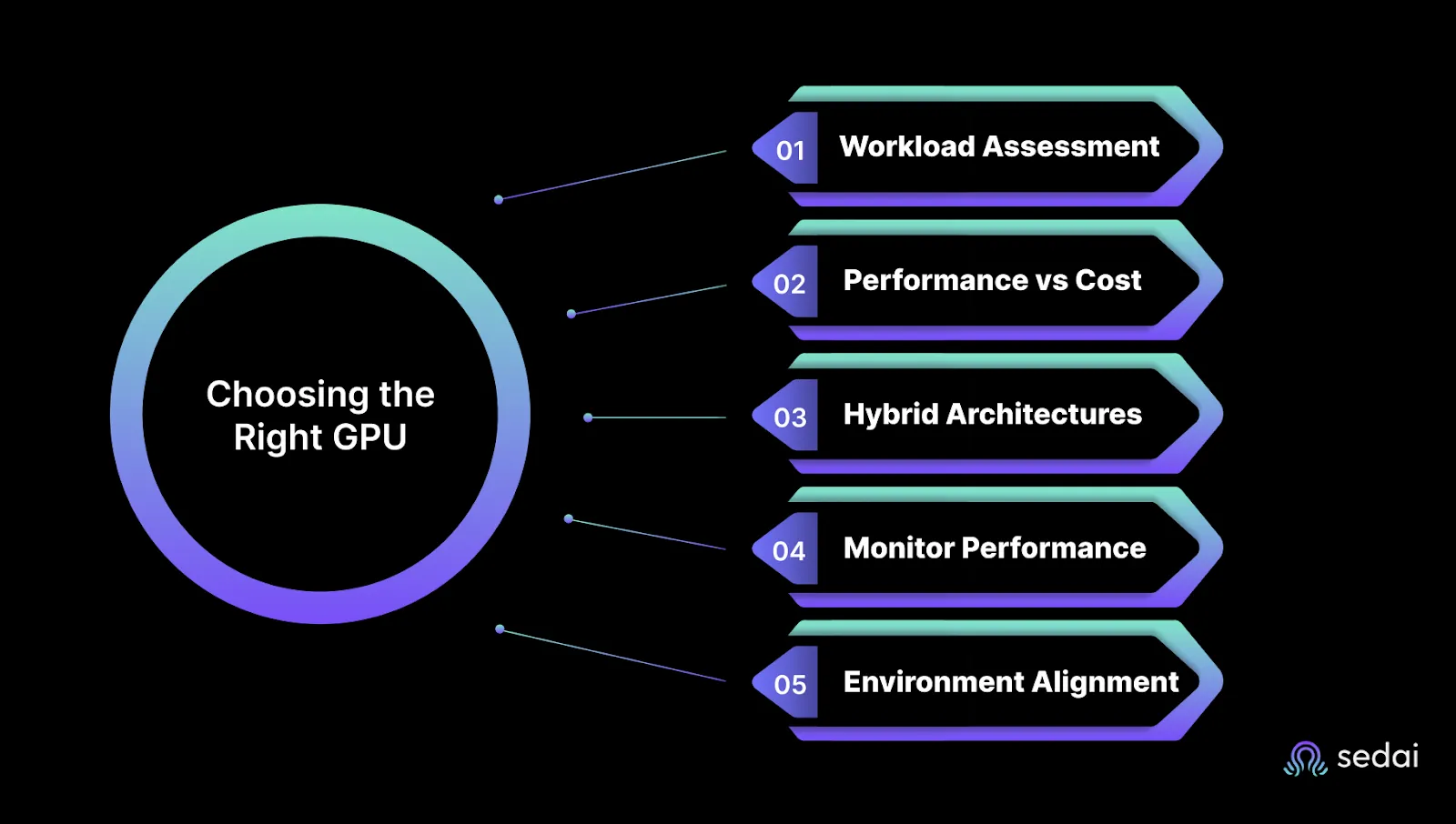
1. Know Your Workload
Training vs. Inference: Training large models / HPC simulations: Needs raw GPU power → P3 (V100) or P4 (A100).Inference & graphics rendering: Can run efficiently on G4 (T4) or G5 (A10G).
Training large models / HPC simulations: Needs raw GPU power → P3 (V100) or P4 (A100).
Inference & graphics rendering: Can run efficiently on G4 (T4) or G5 (A10G).
Memory requirements: High‑end GPUs in P‑Series offer larger VRAM, avoiding out‑of‑memory errors during training.
Scaling needs: Distributed training benefits from P‑Series NVLink for high‑bandwidth GPU‑to‑GPU communication.
2. Balance Performance and Cost
G‑Series: Lower cost for inference, rendering, and light training.
P‑Series: Best for compute‑heavy workloads, but expensive — justify the spend.
Spot Instances: Save up to 70% for fault‑tolerant jobs, but handle interruptions with checkpointing.
3. Use Hybrid Architectures
Offload preprocessing and orchestration to CPU nodes.
Keep GPU nodes focused on training or inference.
Improves utilization and cuts cost.
4. Benchmark Before Scaling
Start with smaller instances, measure GPU utilization (nvidia‑smi) and CloudWatch metrics.
If utilization is consistently <30%, you’re over‑provisioned.
Adjust instance type as workloads evolve.
5. Match Environment to Usage
Dev/Test: G‑Series with Spot pricing.
Production: Reserved Instances or Savings Plans + autoscaling to prevent over‑provisioning.
Bottom line: Size for your real needs, benchmark early, and don’t pay for idle GPUs.
Next, we’ll dive into how you can optimize your AWS GPU costs further, including smart pricing strategies and efficient resource management.
Optimize GPU Performance on AWS
Getting the right GPU instance is just step one — keeping it running efficiently is where the real gains are. Poor utilization, slow data feeds, or inefficient scaling can quietly drain your budget and stall workloads.
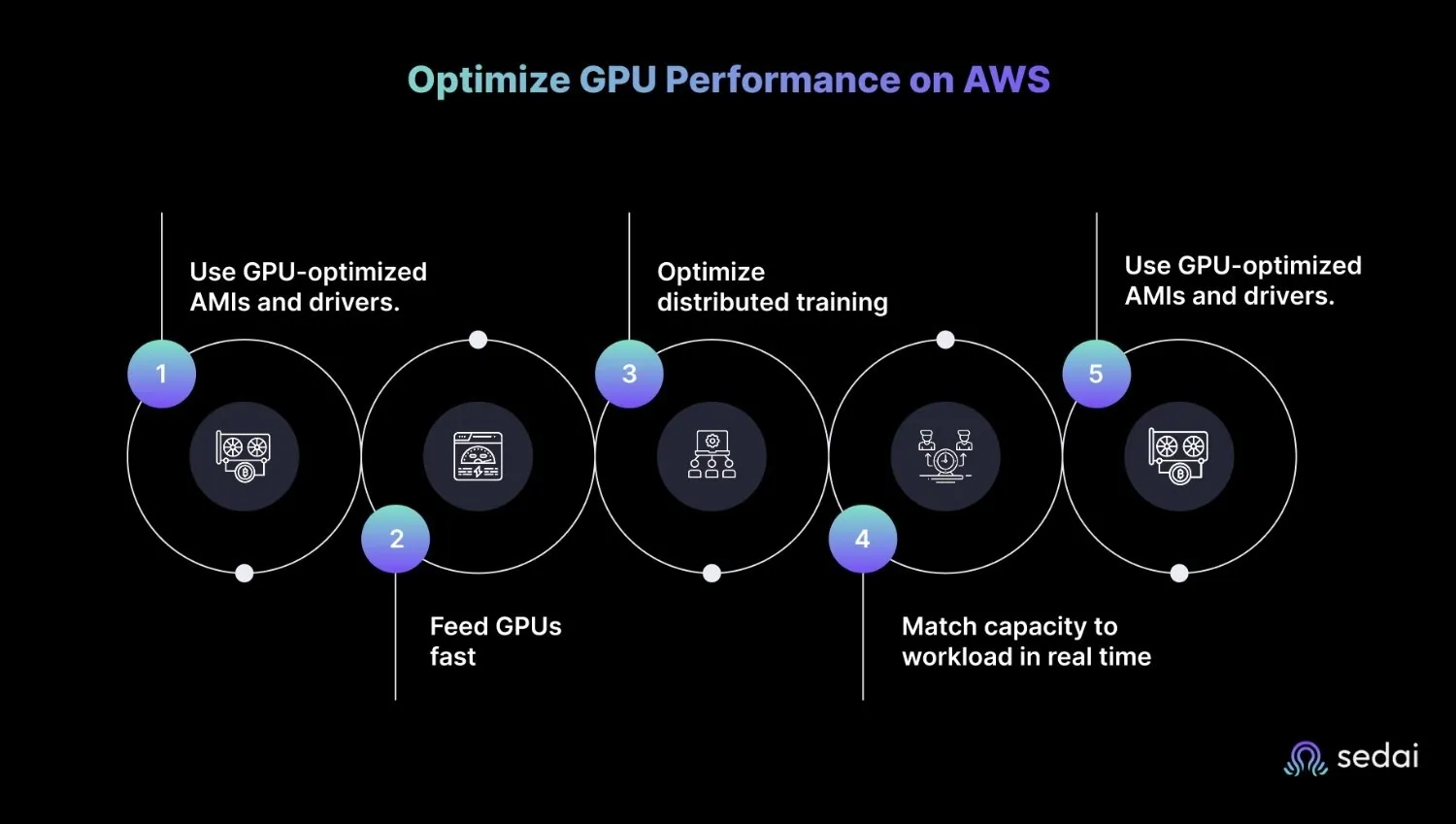
Key ways to get more from every GPU hour:
Use GPU‑optimized AMIs and drivers: Start with AWS Deep Learning AMIs (NVIDIA drivers, CUDA, cuDNN pre‑installed). Keep them updated to get performance fixes and framework optimizations.
Feed GPUs fast: High‑throughput storage (FSx for Lustre, EFS) and local SSD caching help avoid idle time. Parallelize data loading so compute never waits on I/O.
Optimize distributed training: For multi‑GPU jobs, use frameworks like Horovod or PyTorch Distributed. Tune batch sizes, and minimize cross‑instance traffic with NVLink‑aware setups where supported.
Match capacity to workload in real time: Use autoscaling driven by GPU metrics to spin resources up or down. Consider Spot for batch or fault‑tolerant work, but checkpoint frequently.
Monitor GPU‑specific metrics: Track utilization, memory use, and temperature with tools like nvidia-smi or NVML, and push to CloudWatch for alerts and dashboards.
With these in place, you can keep throughput high, costs predictable, and avoid the slow creep of under‑performing hardware.
You can’t tune what you can’t see. AWS’s default metrics cover CPU and network, but GPU workloads demand deeper visibility.
How to track what matters:
Use GPU‑aware tools: nvidia-smi and the NVIDIA Management Library (NVML) reveal real‑time utilization, memory use, power draw, and temperature.
Push custom metrics to CloudWatch: Collect GPU stats via Python (pynvml) and send them as CloudWatch custom metrics for centralized dashboards.
Automate data collection: Run lightweight scripts every 10–60 seconds to keep monitoring in sync with workload changes.
Set actionable alarms: Get alerts for low utilization, overheating, or memory saturation so you can fix bottlenecks before they snowball.
Correlate with workload patterns: Tie GPU metrics to training jobs, inference traffic, or rendering tasks to spot inefficiencies faster.
When you monitor at this level, you can move from reactive firefighting to proactive optimization, making every GPU hour count.
Get More from Your AWS GPU Instances: Best Practices
Even after you’ve picked the right AWS GPU instance, there’s still room to push performance further and control costs. These workload‑specific tips go beyond the basics covered earlier.
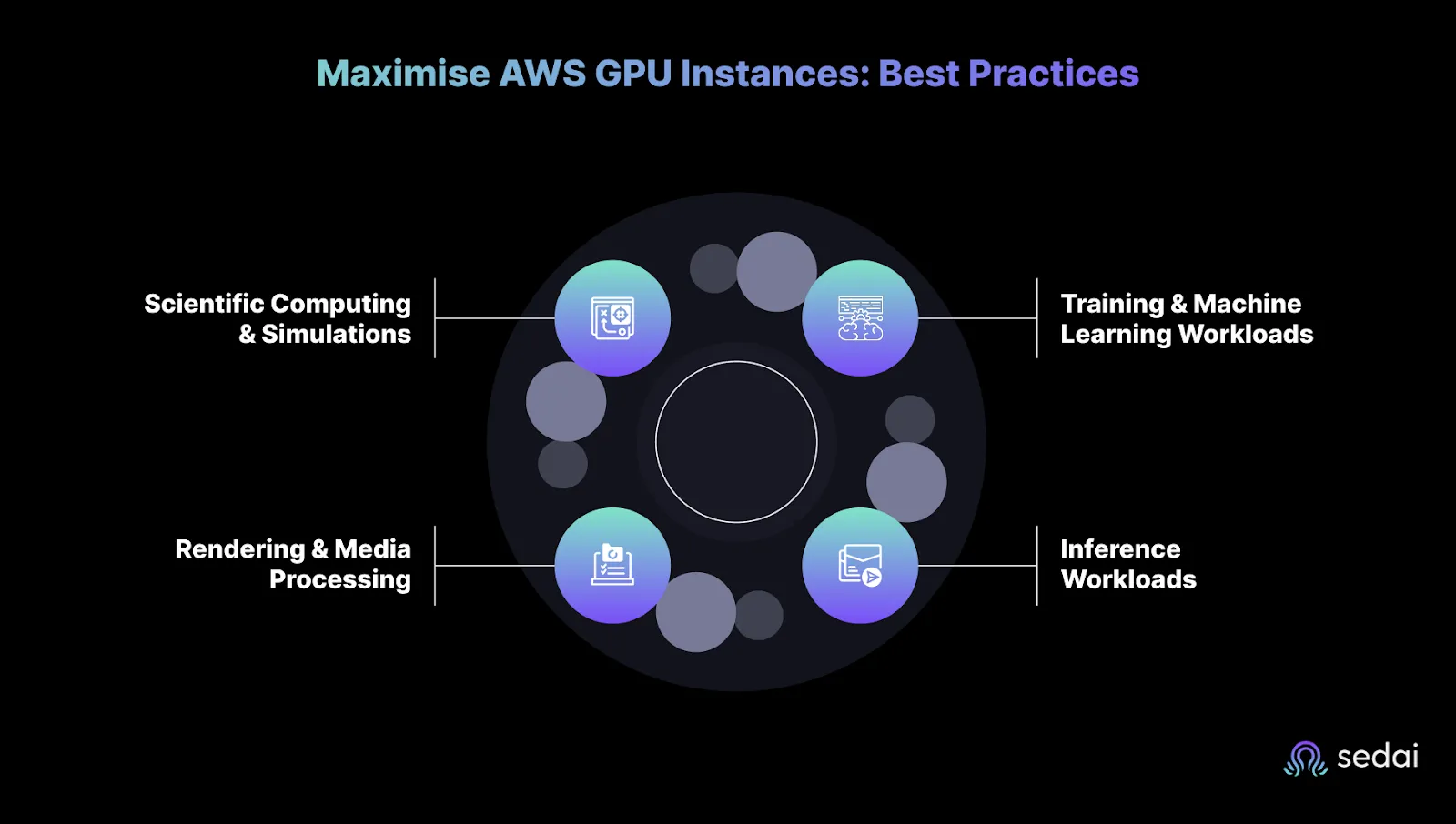
1. Training & Machine Learning Workloads
Use mixed precision training (FP16) to speed up model training and cut AWS GPU instance hours without accuracy loss.
Checkpoint often so you can resume after Spot interruptions or restarts without re‑running entire jobs.
Optimize distributed training with frameworks like Horovod or PyTorch Distributed to prevent communication bottlenecks.
2. Inference Workloads
Deploy smaller, optimized model variants (quantized or pruned) for lower latency and reduced GPU load.
Share GPUs across multiple inference services or containers to improve utilization.
3. Rendering & Media Processing
Cache frequently used assets in GPU memory to avoid repeated decoding or reprocessing.
Track GPU memory and temperature closely to prevent throttling during long render sessions.
4. Scientific Computing & Simulations
Split large datasets into smaller parallel jobs to keep GPUs fully utilized without overloading memory.
Use specialized math libraries like cuDNN, cuBLAS, or TensorRT for maximum computational efficiency.
Why More Engineers Are Using Sedai for Smarter AWS GPU Optimization
Managing AWS GPU instances is more than just picking the right hardware: workloads evolve, demand changes, and what worked yesterday may waste resources tomorrow. Engineers need real-time tuning, not static rules.
Platforms like Sedai use AI to automate that tuning. Instead of just flagging recommendations and leaving you to act, Sedai can execute safe optimizations automatically by adjusting instance size, scaling workloads, and avoiding waste, all with minimal human intervention.
How Sedai Supports AWS GPU Workloads:
Right-size GPU instances continuously based on utilization patterns.
Automate scaling for training and inference as demand shifts.
Safely leverage Spot instances, using checkpointing to prevent work loss.
Maintain high GPU utilization and avoid paying for idle compute time.
These capabilities move cloud tuning from manual toil to autonomous reliability evaluation and execution that happen seamlessly, without burdening your team
CloudWatch flags GPU idle time, but it doesn't act on it. Book a demo to see how Sedai monitors GPU utilization continuously and adjusts allocations before idle capacity compounds into a billing problem.
Conclusion
Running AWS GPU instances well isn’t about throwing the biggest hardware at every problem. It’s about knowing what your workload really needs, watching how those GPUs are used, and making adjustments before inefficiency creeps in.
The more intentional your approach, the less you’ll waste both in budget and in compute time. And with automation tools like Sedai stepping in to handle routine tuning, you can keep performance high without living in constant firefight mode.
They power compute-heavy workloads like ML model training, inference, video rendering, and 3D simulations.
How do I choose the right GPU instance on AWS?
Match the instance to your workload—P4 for training, G5 for inference or graphics, and use benchmarking.
Are Spot GPU instances reliable for production?
Yes, with proper fallbacks. Sedai helps you use Spot safely by predicting interruptions and autoscaling intelligently.
How can I reduce the cost of GPU instances on AWS?
Use Savings Plans, right-size your workloads, and automate lifecycle decisions with platforms like Sedai.
Can Sedai help with GPU optimization on AWS?
Absolutely. Sedai continuously tunes your instance type, size, and pricing for optimal performance and cost.
Instance
GPU
vCPU / RAM
On-Demand Cost / hr (USD)
g4dn.xlarge
NVIDIA T4
4 vCPU / 16 GB
$0.526
g5.xlarge
NVIDIA A10G
4 vCPU / 16 GB
$1.006
g5.4xlarge
NVIDIA A10G
16 vCPU / 64 GB
$1.624
p3.2xlarge
NVIDIA V100
8 vCPU / 61 GB
$3.06
p3.16xlarge
NVIDIA V100
64 vCPU / 488 GB
$24.48
p4d.24xlarge
NVIDIA A100 ×8
96 vCPU / 1,152 GB
$32.77
Similar Resources
Introducing the Sedai Karpenter Migration Assistant: Move to Karpenter Without the Risk
Karpenter is the better way to provision EKS nodes, but migrating safely is hard. Sedai's new Migration Assistant automates the cutover, with a pre-flight compatibility check and automatic rollback if anything goes wrong.
Amazon EMR Cost Optimization: Key Strategies for 2026
Optimizing Amazon EMR expenses becomes increasingly critical for organizations looking to maintain budget efficiency while ensuring high performance and scalability in their data processing workflows. By implementing effective cost optimization strategies, businesses can significantly reduce their EMR costs without compromising on workload efficiency.Understanding the key levers for cost savings in Amazon EMR is essential for making informed decisions and achieving long-term financial benefits. These strategies involve a combination of resource management techniques, data storage optimizations, and performance tuning practices that can help organizations strike the right balance between cost and performance.
We'll explore the key strategies and techniques for optimizing Amazon DynamoDB costs in 2025, helping you navigate the complexities of cloud cost management and make informed decisions that drive business value. Optimizing DynamoDB costs is not a one-time task; rather, it requires continuous monitoring, analysis, and adaptation to ensure that resources are being utilized efficiently. By understanding the intricacies of DynamoDB pricing models and implementing best practices, organizations can significantly reduce their database expenses without compromising on performance or reliability.
Cost Optimization Strategies for Amazon RDS in 2026
Cost optimization for Amazon RDS involves a combination of monitoring, right-sizing, and leveraging AWS tools to reduce costs while maintaining optimal performance. By adopting best practices and implementing effective cost management techniques, organizations can significantly lower their RDS expenses without compromising on reliability or performance.In this article, we'll explore various strategies and tools that can help you optimize your Amazon RDS costs. From resource tagging and utilization monitoring to instance right-sizing and automated scheduling, we'll cover the key areas where you can make impactful changes to reduce your RDS spending.
.webp%3Fv%3D2026-04-09T18%253A41%253A05.143Z&w=3840&q=75)