Optimizing Azure costs with Advisor recommendations requires a solid understanding of workload patterns, from right-sizing resources to eliminating idle instances. Azure Advisor helps identify underutilized resources and suggests adjustments like resizing VMs, switching to Reserved Instances, or using Spot VMs to cut costs. By integrating tools like Azure Cost Explorer and Azure Budgets, you can track usage trends and make informed decisions.
Managing Azure costs is a constant balancing act. With so many resources and services running at once, it becomes easy to overlook inefficiencies that slowly add up. Many teams depend on manual tracking and reactive fixes, which often leads to unpredictable spending and a steady rise in wasted resources.
In fact, studies find that around 30% of total cloud spend is wasted on idle, underused, or oversized resources such as VMs, storage, and services.
The challenge is clear: many Azure environments remain underutilized, resulting in unnecessary expenses. Resources like VMs, storage accounts, and databases are frequently over-provisioned, resulting in avoidable cloud spend.
This is where Azure Advisor becomes valuable by offering personalized recommendations to help you optimize your Azure setup. By prioritizing key cost-saving actions such as right-sizing resources, removing idle instances, and using Reserved Instances effectively, you can reduce costs significantly while keeping performance intact.
In this blog, you’ll explore Azure Advisor’s top recommendations and ways to apply them, making it easier to simplify your Azure costs with minimal effort.
What Is Azure Advisor & Why Does It Matter?
Azure Advisor is a tool that delivers personalized best practices to help optimize your Azure environment. It continuously reviews your configurations and usage patterns, offering tailored recommendations across cost, security, performance, and reliability.
Azure Advisor makes it easier to spot inefficiencies early, reduce unnecessary spending, and improve system performance without requiring constant manual intervention.
The tool analyzes data from your Azure workloads to identify areas for improvement, then provides clear, actionable guidance to optimize resources, strengthen security, and ensure your infrastructure operates efficiently.
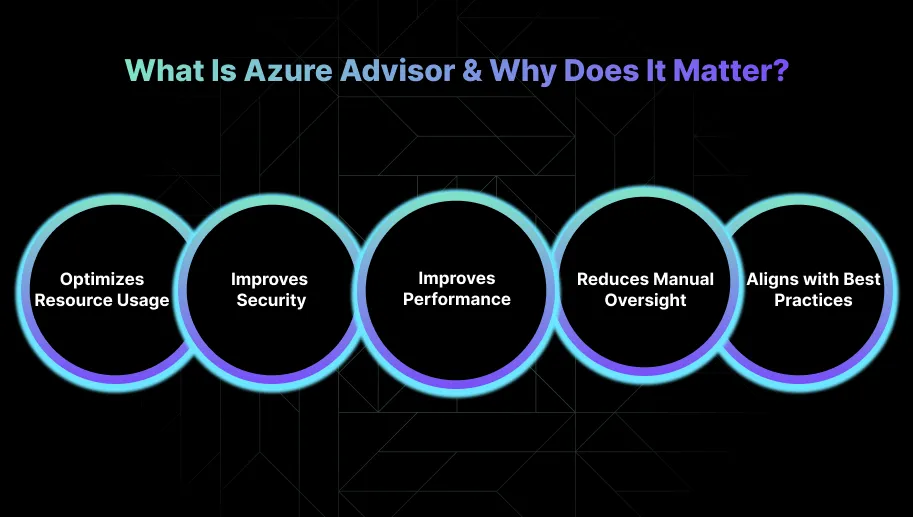
Here’s why Azure Advisor matters for you:
1. Optimizes Resource Usage and Cost Efficiency
Azure Advisor helps you pinpoint underutilized resources and over-provisioned services, offering clear recommendations to right-size your infrastructure. This directly reduces unnecessary costs while ensuring workloads continue to perform as expected. It’s a practical way to achieve cost savings without compromising service reliability.
2. Improves Security and Compliance
Advisor highlights potential security issues, such as unencrypted data or missing firewalls that may introduce risks. These insights enable you to align their environments with security best practices, lowering the chances of security breaches or compliance violations.
3. Improves Performance and Reliability
By suggesting improvements for high availability and redundancy, Azure Advisor helps distribute workloads effectively, reducing the risk of downtime. You can fine-tune their infrastructure to meet performance targets without over-provisioning, resulting in better efficiency and an improved user experience.
4. Reduces Manual Oversight
Azure Advisor automates resource monitoring, surfacing inefficiencies and security gaps. This reduces the need for constant manual checks, allowing you to focus on more strategic initiatives. The result is improved productivity across the team.
5. Aligns with Best Practices
Advisor continuously evaluates your environment against Azure’s recommended best practices. This means having a reliable guide that keeps infrastructure optimized, secure, and efficient without needing frequent manual audits.
Once you understand the role of Azure Advisor, it becomes easier to appreciate the key features that make it so useful.
Key Features of Azure Advisor
Azure Advisor gives you personalized, actionable guidance to fine-tune your Azure environments across cost, performance, security, and reliability. Its recommendations help simplify decision-making, reduce manual effort, and keep cloud workloads running efficiently.
1. Personalized Recommendations
Azure Advisor delivers recommendations tailored to your specific usage patterns, configurations, and workloads in Azure. This ensures you receive highly relevant insights that directly target inefficiencies in cost, security, performance, and reliability.
Unlike generic guidance, these recommendations are fine-tuned to your environment, providing actionable direction for each project or application.
2. Integrated Dashboard
The Azure Advisor dashboard consolidates all recommendations into a single, easy-to-access view. You can quickly evaluate their environment’s health and prioritize actions based on these insights.
The dashboard also enables tracking progress over time, supporting continuous optimization without manual monitoring.
3. Ability to Filter, Postpone, or Dismiss Recommendations
You retain full control over recommendation management. They can filter suggestions by category, such as cost, security, performance, and more, postpone recommendations for future action, or dismiss irrelevant items.
This flexibility ensures focus remains on high-impact optimizations while avoiding distractions from low-priority tasks.
4. Free Access
Azure Advisor is available at no extra cost, making it a powerful and accessible tool for ongoing cloud optimization. You can use its full range of features to proactively optimize their environment without adding financial overhead.
Understanding these features also helps you make better sense of how Azure Advisor organizes its recommendations.
Suggested Read: Azure AKS 2026: Pricing & Cost-Optimization
Categories of Azure Advisor Recommendations
Azure Advisor organizes its recommendations into five main categories, each designed to help you optimize your Azure environments effectively and efficiently. Here’s a breakdown of these categories:
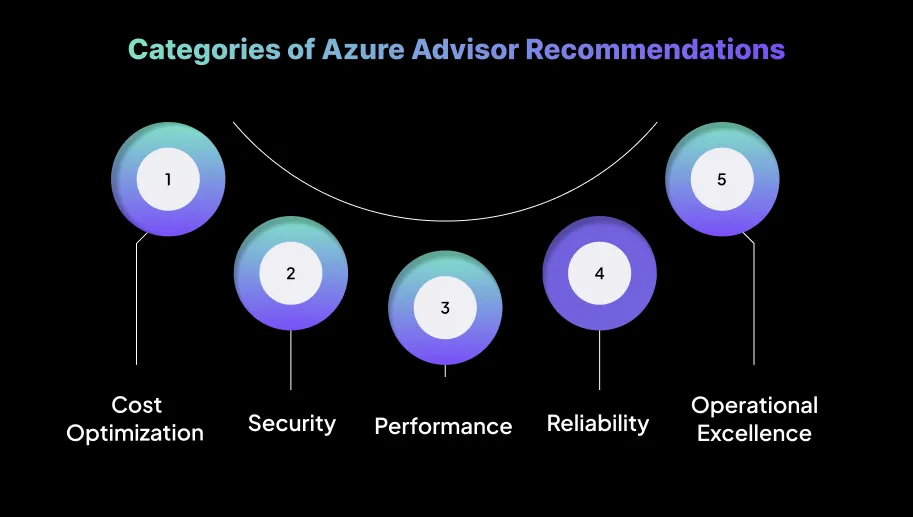
1. Cost Optimization
Azure Advisor's cost recommendations aim to reduce unnecessary cloud spending by identifying and addressing inefficient resource utilization. These recommendations help ensure you’re only paying for the resources you actually need and optimizing them to lower your total cost of ownership.
Key actions include:
Azure Advisor identifies underutilized or over-provisioned resources, including VMs, databases, and storage accounts. It provides suggestions to resize them so they more accurately match actual workload requirements.
Expert Tip: Before implementing right-sizing recommendations, carefully review historical usage data to make sure the suggested size truly reflects peak and off-peak usage patterns. This helps prevent under-sizing that could impact application performance during high-demand periods.
Additional Insight: After resizing, monitor resource usage to confirm performance remains optimal. If performance declines, consider leveraging Azure Autoscale to dynamically adjust resources for enhanced flexibility and responsiveness.
- Eliminating Idle Resources
The tool flags idle or underutilized resources such as VMs, disks, or App Services, recommending cleanup or shutdown actions.
Expert Tip: Use Azure Automation to schedule automatic shutdowns for non-production VMs during off-hours, ensuring idle resources aren’t generating unnecessary costs. This approach reduces expenses without requiring constant manual oversight.
Additional Insight: Conduct regular audits of unused resources and implement resource tagging to clearly identify which resources are mission-critical versus those that can be safely decommissioned.
- Reserved Instances (RIs) and Spot VMs
Advisor recommends purchasing Reserved Instances or committing to Azure Savings Plans for predictable workloads, offering discounts of up to 72% compared to pay-as-you-go pricing.
Expert Tip: Analyze workload usage over a period of 3–6 months to ensure steady, predictable patterns before committing to Reserved Instances. This helps avoid over-commitment and prevents locking in costs for workloads that may vary.
Additional Insight: Consider using Spot VMs for non-production or flexible workloads that can tolerate interruptions. Leveraging unused capacity in this way can lead to substantial reductions in compute costs.
2. Security
Security recommendations ensure your Azure environment is protected from potential threats while complying with best practices for cloud security. Azure Advisor provides actionable guidance to safeguard data, control access, and minimize vulnerabilities.
Key actions include:
- Encryption and Data Protection
Advisor suggests enabling encryption for storage accounts, databases, and other sensitive resources, protecting data both at rest and in transit.
Expert Tip: Implement Azure Storage Service Encryption (SSE) for all storage accounts and Transparent Data Encryption (TDE) for Azure SQL databases to automatically secure data without negatively impacting application performance.
Additional Insight: Regularly review encryption configurations to ensure that newly created resources are automatically encrypted and that compliance standards are consistently enforced across your environment.
- Network Security Best Practices
Advisor identifies unsecured network endpoints or misconfigured firewalls, including open ports or missing NSGs, and recommends closing unused ports, restricting access to sensitive resources, and ensuring resources are protected behind properly configured firewalls.
Expert Tip: Conduct frequent network security reviews to maintain least-privilege access and use Azure Firewall to centralize security rules and monitor traffic flow.
Additional Insight: Implement web application firewalls (WAFs) for publicly accessible Azure applications to defend against common attacks such as SQL injection and cross-site scripting, particularly when resources are exposed to the internet.
- Identity and Access Management
Advisor flags accounts with excessive permissions, recommends RBAC best practices, and suggests enforcing MFA for sensitive operations.
Expert Tip: Regularly audit roles to ensure least-privilege access and remove unnecessary permissions, reducing your attack surface. Azure AD Privileged Identity Management (PIM) can provide more granular control over elevated privileges.
Additional Insight: Implement conditional access policies to enforce MFA for critical operations, adding an additional layer of security for users with access to sensitive resources or data.
3. Performance
Performance recommendations are data-driven, based on actual metrics and resource behavior rather than abstract best-practice heuristics.
Key actions include:
Advisor suggests scaling VMs up or down based on CPU and memory utilization and scaling out to add more instances to meet increased demand.
Expert Tip: Utilize Azure Autoscale to dynamically adjust resources in response to real-time demand, allowing workloads to scale automatically without manual intervention.
Additional Insight: For high-performance applications, test new scaling configurations in staging environments before deploying to production to ensure the application can efficiently handle additional load.
Advisor provides guidance on improving storage performance, including recommendations to move from Standard HDD to Premium SSD for high-performance workloads or reconfiguring disks for higher IOPS.
Expert Tip: Monitor latency, throughput, and IOPS using Azure Monitor to identify the appropriate storage configuration for each workload.
Additional Insight: Consider tiering less frequently accessed data to lower-cost storage solutions such as Azure Blob Storage. This approach can deliver cost savings while maintaining availability.
- SQL Database Optimizations
For Azure SQL Database workloads, Advisor recommends actions such as index optimization, query tuning, and selecting the right database tier to reduce latency and improve query performance.
Expert Tip: Use SQL Query Performance Insights to examine long-running queries, apply index optimizations, and review execution plans to enhance performance without unnecessarily scaling the database tier.
Additional Insight: Enable automatic tuning in Azure SQL Database to continuously optimize indexes and query execution as workloads evolve.
4. Reliability
Reliability recommendations focus on building resilient, fault-tolerant infrastructure that ensures business continuity and minimizes downtime.
Key actions include:
Advisor suggests enabling geo-redundant storage or deploying resources across multiple availability zones to avoid single points of failure.
Expert Tip: For mission-critical applications, implement geo-replication and Azure Traffic Manager to distribute traffic across regions and maintain continuity during regional outages.
Additional Insight: Use zone-redundant storage (ZRS) for high availability and low-latency failover when deploying databases and storage across multiple regions.
- High Availability Recommendations
Advisor identifies opportunities to improve service availability through availability sets, availability zones, and load balancing.
Expert Tip: Ensure critical workloads are deployed across multiple zones for fault tolerance, and use Azure Load Balancer to manage traffic across VMs to prevent a single VM from becoming a failure point.
Additional Insight: Deploy stateless applications across Availability Zones to increase redundancy without requiring major architectural changes.
- Backup and Disaster Recovery
Advisor recommends enabling Azure Backup for important data and configuring disaster recovery for high-availability applications.
Expert Tip: Use Azure Backup Vault to manage backup policies centrally and automate schedules for essential resources.
Additional Insight: Implement Azure Site Recovery for mission-critical workloads to minimize downtime during unexpected failures and routinely test recovery plans to meet RTO and RPO objectives.
5. Operational Excellence
Operational excellence recommendations aim to improve day-to-day management, simplify operations, and ensure Azure environments remain maintainable at scale.
Key actions include:
Advisor encourages automating recurring tasks such as scaling, resource management, and patching.
Expert Tip: Use Azure Automation Runbooks to handle tasks like deallocating resources outside business hours or automatic VM patching, reducing manual errors and saving time.
Additional Insight: Combine Azure Logic Apps with Automation to create event-driven workflows that trigger actions such as scaling VMs or optimizing storage based on real-time conditions.
Advisor highlights the importance of implementing a tagging strategy for improved resource management and cost tracking.
Expert Tip: Standardize tags (e.g., “Environment: Production,” “CostCenter: Marketing”) to gain visibility and control over spending.
Additional Insight: Enforce tagging consistency across resources with Azure Policy to avoid untracked costs and maintain organizational standards.
- Compliance and Best Practices
Advisor encourages adopting Azure’s Operational Excellence framework by following recommended policies and guidelines.
Expert Tip: Implement Azure Policy to enforce compliance and use Azure Security Center to monitor deviations from organizational standards.
Additional Insight: Use Azure Blueprints to deploy repeatable configurations at scale, ensuring consistent regulatory compliance and operational efficiency.
Once you understand the different recommendation categories, it becomes easier to manage them and take the right actions.
How to Manage and Act on Azure Advisor Recommendations?
Azure Advisor provides a wealth of insights to help optimize your Azure environment. For senior engineers, effectively managing and acting on these recommendations is essential to maintaining a cost-efficient, secure, and high-performing cloud infrastructure. Below are clear, actionable steps for handling Azure Advisor’s recommendations.
1. Prioritize Recommendations Based on Impact
Before acting on any recommendation, evaluate its potential impact on your business operations. For example, cost-saving measures like shutting down idle VMs can have a high impact, whereas minor performance adjustments may be less urgent.
Expert Tip: Focus on recommendations with the highest criticality—prioritize security actions such as enabling encryption or high-cost items like resizing VMs. Align these priorities with organizational objectives or regulatory requirements to maximize value.
2. Filter Recommendations for Relevance
Azure Advisor allows filtering by categories, including cost, performance, security, and reliability. Senior engineers should concentrate on categories that are most relevant to ongoing priorities.
Expert Tip: Set up custom filters to focus on specific resource types such as VMs, databases, or storage accounts. This helps you focus on areas under your direct management or responsibility, avoiding distractions from less relevant recommendations.
3. Evaluate Each Recommendation Before Implementation
For recommendations such as right-sizing VMs, thoroughly review Azure Monitor and Azure Cost Management metrics to ensure the suggested changes will not negatively impact performance.
Expert Tip: Test recommendations in a staging environment before applying them to production systems. This precaution is crucial for performance adjustments or high-availability configurations to avoid any unintended consequences.
4. Implement Changes Carefully
Avoid applying all recommendations at once. Implement changes incrementally to minimize the risk of disruption, especially when adjusting configurations or scaling resources.
Expert Tip: Use Azure Automation to systematically implement changes across multiple resources. For instance, automate VM shutdown schedules or resource resizing during off-peak hours to reduce operational impact.
5. Automate and Simplify Recommendations
Use Azure Automation and Azure Logic Apps to apply recurring tasks automatically, such as rightsizing VMs or deleting unused resources. This approach frees up time for strategic initiatives.
Expert Tip: For performance optimization, enable auto-scaling and auto-healing on critical workloads. This ensures resources dynamically adjust to real-time demand while avoiding wasted costs from underutilized resources.
6. Post-Implementation Monitoring and Review
After applying a recommendation, monitor its effectiveness using Azure Monitor and Azure Log Analytics. Confirm that the changes achieve the intended outcomes, such as cost savings or performance improvement.
Expert Tip: Establish KPIs and dashboards to track metrics like resource utilization, cost reduction, and performance gains over time. This ensures that implemented changes continue to support long-term objectives.
7. Dismiss or Postpone Unnecessary Recommendations
Some suggestions may not apply to your workload or organizational needs. Dismissing them keeps the dashboard uncluttered.
Expert Tip: Regularly review dismissed recommendations to ensure no valuable insights have been overlooked, especially as your environment or workloads change. You can also postpone recommendations when immediate action isn’t required.
8. Share Recommendations with the Team
Azure Advisor allows exporting recommendations as CSV or PDF files. This feature helps senior engineers share insights with team members or stakeholders, particularly when discussing optimization strategies or seeking approvals for major changes.
Expert Tip: Use these reports in team meetings to align on priorities and actions. Clear documentation ensures all team members stay informed, can track progress collectively, and maintain accountability.
Knowing how to manage and act on recommendations makes it easier to follow a step-by-step approach when getting started with Azure Advisor.
Also Read: Choosing Azure VM Instance Types for Rightsizing
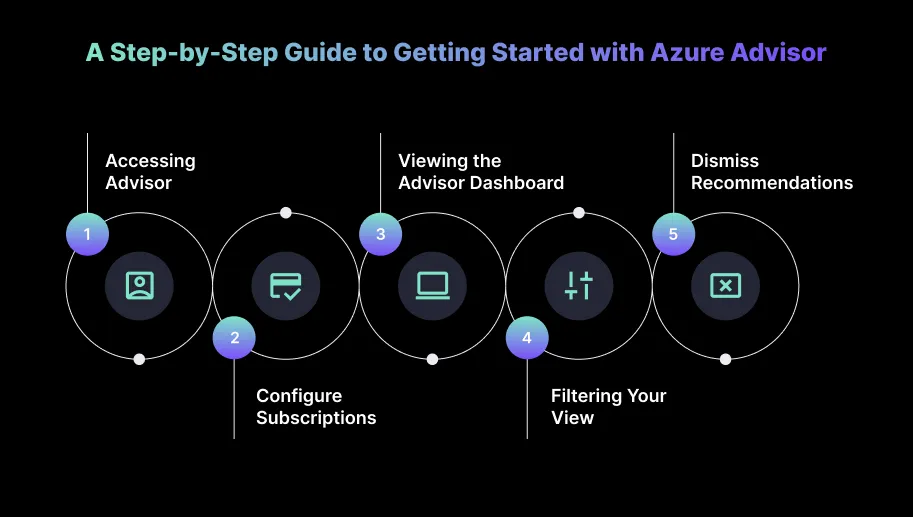
A Step-by-Step Guide to Getting Started with Azure Advisor
Azure Advisor delivers actionable recommendations to optimize your Azure environment across cost, security, performance, and reliability.
This guide helps you handle the process of accessing, analyzing, and implementing these insights, enabling them to improve efficiency and reduce cloud overhead systematically.
1. Accessing Advisor
Sign in to the Azure portal to get started with Azure Advisor. You can access Advisor in three ways:
- Click the Advisor icon at the top of the portal page.
- Use the search bar to look for “Advisor.”
- Navigate through the Advisor link in the left-hand menu.
Once you open Advisor, the Overview page appears, giving you a snapshot of all available recommendations.
2. Configure Subscriptions and Resource Groups
By default, Azure Advisor considers all subscriptions and resource groups when generating recommendations. To focus on specific resources, click Configuration from the menu.
Check the box next to a subscription or resource group in the Include column to include it in Advisor’s analysis. Grayed-out boxes indicate that you don’t have the necessary permissions to modify those settings.
3. Viewing the Advisor Dashboard
The Advisor Dashboard presents tiles for each recommendation category, like cost optimization, security, performance, and reliability. Each tile displays your current score in that category. Click on any tile to explore detailed recommendations and gain deeper insights into potential improvements.
4. Filtering Your View
Within each category, you can apply filters to focus on areas such as subscriptions, resource groups, recommendation status, workload, resource type, or impact. This lets you narrow down recommendations that match your current priorities, streamlining the optimization process.
5. Activate, Postpone, or Dismiss Recommendations
Advisor allows full control over your recommendations. To apply a recommendation, click the blue hyperlink under “Recommended Actions,” which redirects you to the relevant page to activate it.
If immediate action isn’t required, you can postpone the recommendation. For recommendations that are irrelevant or no longer necessary, you can dismiss them. Dismissing may require higher-level permissions. You can also download recommendations in CSV or PDF format for easy sharing with your team.
While the step-by-step guide helps you get started, it’s also important to be aware of the limitations of Azure Advisor.
Limitations of Azure Advisor
Azure Advisor is a powerful tool for optimizing Azure environments, but it has limitations that you should consider. While it delivers valuable, actionable recommendations, it doesn’t fully automate their implementation. Below are the limitations of Azure Advisor.
1. Limited Scope for Multi-Cloud Environments
Azure Advisor focuses solely on Azure resources and does not cover hybrid or multi-cloud setups. Engineers managing workloads across AWS, Google Cloud, or other platforms will need additional tools, adding complexity to infrastructure management.
2. Requires Manual Action for Implementation
Advisor provides actionable recommendations, but they aren’t automatically applied. You must manually activate, postpone, or dismiss suggestions, which can be time-consuming, especially in large-scale or dynamic environments.
3. Generic Recommendations for Complex Environments
Advisor’s guidance is based on general best practices and may not fully address the unique requirements of high-performance, specialized, or custom workloads. Implementing these recommendations often requires extra customization or validation.
4. Permissions and Access Limitations
Some recommendations or configurations may be restricted due to access permissions. You may need to coordinate with other teams or request elevated privileges to implement changes effectively.
5. Performance Recommendations May Not Capture All Bottlenecks
Advisor’s performance suggestions may not identify every potential bottleneck, particularly in dynamic or specialized workloads. You may need supplementary diagnostic tools, such as Azure Monitor, to fully analyze and address performance challenges.
6. Not Fully Automated
While Advisor helps identify inefficiencies, it does not automate remediation or scaling of resources. You still need to decide when and how to apply changes, which is critical for environments requiring precise control.
7. Limited Integration with Third-Party Tools
Advisor is built specifically for Azure and has limited integration with third-party cloud management or monitoring solutions. This limitation can affect you when managing multi-cloud or hybrid infrastructures that rely on broader toolsets.
Must Read: Best Practices to Optimize Azure Blob Storage in 2025
How Sedai Improves Azure Cost Optimization Beyond Advisor Recommendations?
Azure Advisor provides personalized recommendations to optimize cost, performance, and security in your Azure environment. It identifies idle resources, suggests right-sizing opportunities, and highlights areas for performance improvement.
However, Azure Advisor does not automate the application of these recommendations, leaving manual intervention necessary to implement cost-saving measures.
This is where Sedai plays a major role. Sedai automates the optimization of your cloud environment, leveraging real-time data and machine learning to dynamically adjust based on actual usage patterns.
Sedai complements Azure Advisor by continuously refining resource allocations, reducing waste, and ensuring cost-efficiency across your entire infrastructure.
Here’s what Sedai offers for Azure cost optimization:
- Continuous Autonomous Monitoring: Sedai automatically tracks real-time data and performance trends, identifying inefficiencies and optimization opportunities as they emerge. It ensures up to 50% savings by dynamically reallocating resources.
- Dynamic Rightsizing and Resource Adjustment: Sedai uses machine learning to analyze actual workload usage and adjust VM sizes, CPU, memory, and storage accordingly. This dynamic rightsizing reduces cloud costs by 30%, ensuring that only the required resources are provisioned rather than overcommitting.
- Predictive Optimization Based on Usage Patterns: By tracking historical usage and predicting future demand, Sedai adjusts infrastructure in advance. This proactive approach helps achieve more accurate resource allocation through predictive scaling based on historical and real-time data.
- Full-Stack Cost and Performance Insights: Sedai evaluates your entire Azure environment to optimize compute, storage, networking, and commitment levels. This full-stack approach delivers improvement in overall system performance and a reduction in wasted resources due to holistic optimization.
- Time Saved for Engineering Teams: With Sedai’s automated optimization, engineering teams are relieved of manual tasks such as resizing VMs or cleaning up idle resources. This allows teams to achieve 6x higher engineering productivity by automating repetitive optimization tasks.
While Azure Advisor provides valuable recommendations, Sedai takes these insights a step further by automating their execution.
Sedai continuously adjusts and optimizes your infrastructure without waiting for manual intervention. This means that Azure Advisor’s suggestions, combined with Sedai’s autonomous optimization, lead to ongoing cost and performance improvements.
If you're looking to optimize GPU resource management in Kubernetes with Sedai, our ROI calculator can estimate how much you can save by reducing waste and improving resource efficiency.
Final Thoughts
While Azure Advisor provides strong recommendations for cost optimization, continuous monitoring and refinement remain essential for long-term success. As your workloads shift, your cost-saving strategies need to upgrade as well to ensure you aren’t missing out on potential savings.
By consistently reviewing historical data with tools like Azure Cost Management, you can identify early signs of inefficiency before they become costly issues. Alongside Azure Advisor’s recommendations, this proactive approach helps you avoid unnecessary spending and maintain an efficient cloud environment.
This is where Sedai can improve your efforts by automating the continuous optimization process. Sedai integrates with Azure, using machine learning to predict resource needs, adjust infrastructure in real time, and ensure your environment stays both cost-effective and high-performing.
Take control of your Azure environment with full transparency and reduce inefficiencies instantly.
FAQs
Q1. How often should I review my Azure Advisor recommendations?
A1. It’s recommended to review Azure Advisor’s recommendations quarterly, so your environment stays aligned with changing workloads and updated pricing models. This also helps you confirm whether earlier optimizations continue to support your needs as your infrastructure evolves.
Q2. Can I use Azure Advisor for non-production environments?
A2. Yes, Azure Advisor works for both production and non-production environments. It helps ensure that development, test, or staging environments stay optimized for cost, performance, and security.
Q3. How do I handle Azure Advisor recommendations for critical workloads?
A3. For critical workloads, it’s best to test any recommended changes in a staging environment before rolling them out to production. This helps ensure that performance, availability, and compliance remain unaffected.
Q4. Can I customize Azure Advisor recommendations based on my company’s policies?
A4. Azure Advisor provides general best practices, and you can tailor these by applying Azure policies that match your organization’s unique cost, security, and performance standards.
Q5. Does Azure Advisor cover multi-cloud environments?
A5. Azure Advisor mainly focuses on Azure resources and does not directly support multi-cloud environments. To manage optimization and costs across different cloud platforms, you’ll need a unified toolset or a third-party cloud management solution.
.webp%3Fv%3D2026-01-12T16%253A58%253A43.628Z&w=3840&q=75)