What are the main components of Google Kubernetes Engine (GKE) pricing?
GKE pricing includes cluster management fees, compute resource costs (VMs or pod resources), storage, and network usage. Each of these elements can impact your overall cloud spend, so understanding them is key to managing costs effectively.
How much does GKE charge for cluster management?
GKE applies a standard fee of $0.10 per hour for each Kubernetes cluster, covering the control plane elements like the API server and scheduler. This fee applies to both Standard and Autopilot modes and is charged regardless of the number of nodes in your cluster.
Does GKE offer a free tier for new users?
Yes, GKE provides a free tier with $74.40 in monthly credits per billing account for Zonal and Autopilot clusters. This credit is enough to cover at least one full month of usage for a single cluster type, making it ideal for testing and exploration.
How are compute resources billed in GKE Standard vs. Autopilot mode?
In Standard mode, you are billed for the virtual machines (VMs) backing your node pools, based on vCPU, memory, and storage. In Autopilot mode, you pay for the CPU, memory, and ephemeral storage requested by your pods, making costs more precise but requiring careful resource requests to avoid overpaying.
What are spot VMs and how can they help reduce GKE costs?
Spot VMs (preemptible VMs) are discounted virtual machines that can save you more than 60% compared to standard pricing. They are ideal for batch jobs or non-critical workloads that can tolerate interruptions, but may not be suitable for customer-facing containers unless you have automation to handle interruptions.
How do storage and network usage affect GKE pricing?
Persistent storage, network egress, and load balancers are billed separately in GKE. Persistent disk costs depend on disk type and size, while network charges are based on data leaving the region or Google Cloud. High network egress and cross-region traffic can be major contributors to unexpected GKE bills.
How can I use the Google Cloud Pricing Calculator for GKE cost planning?
The Google Cloud Pricing Calculator allows you to model different GKE configurations, compare Standard vs. Autopilot pricing, and estimate costs based on compute, storage, and network requirements. You can simulate scaling scenarios and export detailed reports for budgeting discussions.
What is the impact of using regional clusters on GKE pricing?
Regional clusters improve availability by spreading nodes across multiple zones, but this also increases cost because you’re running more resources. Costs may rise for additional nodes, network traffic, load balancing, and storage replication.
GKE Features & Best Practices
What are the key features of Google Kubernetes Engine (GKE)?
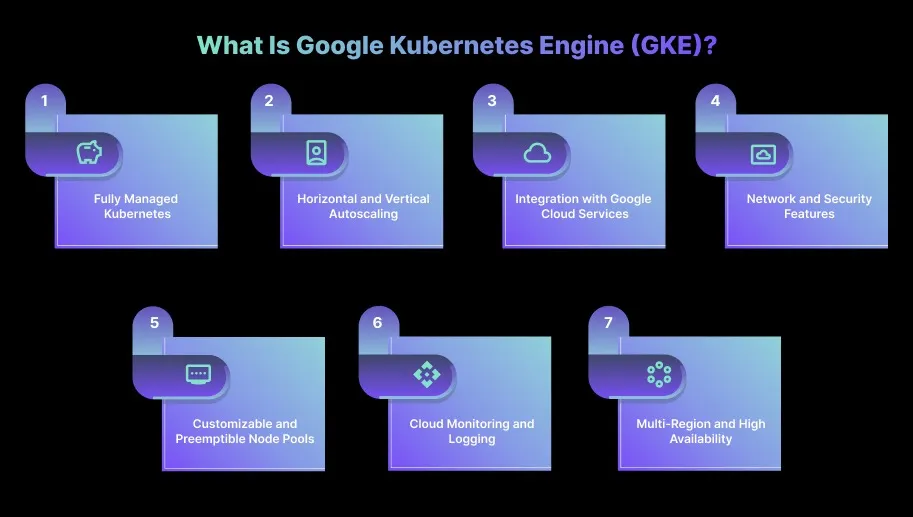
GKE offers fully managed Kubernetes, horizontal and vertical autoscaling, integration with Google Cloud services, advanced network and security features, customizable node pools, built-in monitoring and logging, and support for multi-region, high-availability deployments.
How does GKE differ from self-managed Kubernetes?
GKE is a fully managed service that automates cluster provisioning, upgrades, and scaling, while self-managed Kubernetes requires manual setup and maintenance. GKE provides built-in cost management, security, and integration with Google Cloud services, whereas self-managed clusters offer more control but require more operational effort.
What are the differences between GKE Standard and Autopilot modes?
In Standard mode, you manage the Kubernetes nodes and pay for VMs, offering more control and flexibility. In Autopilot mode, Google manages the infrastructure, and you pay for pod resource requests, making operations simpler and costs more predictable. Standard is best for custom hardware needs; Autopilot is ideal for stateless, scalable workloads.
When should I choose GKE Standard mode over Autopilot?
Choose Standard mode if you need more control over infrastructure, require custom machine types, GPUs, or high-memory nodes, or want to use cost-saving features like preemptible VMs. It is best for predictable, resource-heavy workloads and stateful services.
When is GKE Autopilot mode the better choice?
Autopilot mode is best for stateless, scalable workloads where you want to avoid managing nodes and prefer simple, per-pod pricing. It is ideal for microservices, teams aiming to reduce operational overhead, and workloads that don’t require custom hardware.
What are best practices for managing large-scale GKE clusters?
Best practices include using multi-cluster setups or fleet management, adopting GitOps tools like Argo CD or Flux, enabling Horizontal and Vertical Pod Autoscaling, and leveraging Cloud Operations Suite for monitoring, alerting, and centralized logging.
How does GKE integrate with CI/CD pipelines?
GKE integrates seamlessly with CI/CD tools such as Jenkins, GitLab CI, GitHub Actions, and Cloud Build. Tools like Argo CD can be used for GitOps workflows, ensuring consistent and version-controlled deployments.
Can I run hybrid workloads in GKE with on-premise resources?
Yes, you can run hybrid workloads using Anthos, which lets you manage and deploy workloads across both GKE and on-premise Kubernetes clusters from a single control plane, ensuring a consistent Kubernetes experience across environments.
What are some smart tips to reduce GKE costs?
Enable Horizontal Pod Autoscaling, pick the right storage and clean up unused disks, optimize network traffic to minimize egress fees, and use GKE Cost Insights and monitoring tools to track resource usage and prevent cost spikes.
How can I monitor and optimize GKE costs effectively?
Use Google Cloud’s Cost Management tools to track spending and set budget alerts. Monitor resource usage with cloud monitoring and logging, identify over-provisioned or unused resources, and enable autoscaling to match resources with actual workload demand.
Sedai for GKE Optimization
How does Sedai help optimize GKE autoscaling and cluster efficiency?
Sedai delivers autonomous autoscaling for GKE by using AI-powered models to continuously analyze workload behavior and adjust pod and node resources in real time. This approach eliminates over-provisioning, improves performance, and reduces manual tuning, resulting in up to 50% cost savings and 75% performance improvement.
What specific features does Sedai offer for GKE cost and performance optimization?
Sedai offers pod-level rightsizing, node pool and instance-type optimization, autonomous scaling decisions, automatic remediation, full-stack cost and performance optimization, multi-cluster and multi-cloud support, and SLO-driven scaling for GKE environments.
How much can Sedai reduce GKE cloud costs?
Sedai can help teams cut cloud costs by up to 50% for large Kubernetes environments, with pod-level rightsizing alone delivering up to 30% savings. These results are based on real-world deployments and customer case studies.
What business impact can customers expect from using Sedai for GKE?
Customers using Sedai for GKE can expect significant cost savings (up to 50%), improved application performance (up to 75% latency reduction), increased engineering productivity (up to 6X), and reduced failed customer interactions (up to 50%).
Can you share a customer success story using Sedai for GKE optimization?
Palo Alto Networks used Sedai to save $3.5 million in managed cloud spend, reduce Kubernetes costs by 46%, and save 7,500 engineering hours. These results demonstrate Sedai's impact on cost efficiency and operational productivity. Read the case study.
How does Sedai's autonomous optimization differ from GKE's built-in autoscaling?
GKE's built-in autoscaling relies on fixed thresholds, which may not adapt to real-world workload variations. Sedai uses AI-powered models to continuously analyze workload behavior and proactively adjust resources, resulting in more efficient scaling, reduced waste, and improved performance.
What technical documentation is available for Sedai's GKE optimization?
Sedai provides detailed technical documentation to help you get started with GKE optimization. Access the documentation at docs.sedai.io/get-started and explore additional resources at sedai.io/resources.
What integrations does Sedai support for GKE environments?
Sedai integrates with monitoring tools (Cloudwatch, Prometheus, Datadog, Azure Monitor), Kubernetes autoscalers (HPA/VPA, Karpenter), IaC and CI/CD tools (GitLab, GitHub, Bitbucket, Terraform), ITSM (ServiceNow, Jira), notification tools (Slack, Microsoft Teams), and runbook automation platforms.
What security and compliance certifications does Sedai have?
Sedai is SOC 2 certified, demonstrating adherence to stringent security requirements and industry standards for data protection and compliance. Learn more at sedai.io/security.
How long does it take to implement Sedai for GKE optimization?
Sedai's setup process is quick and efficient, taking just 5 minutes for general use cases and up to 15 minutes for specific scenarios like AWS Lambda. Comprehensive onboarding support and detailed documentation are available for a smooth implementation.
Who can benefit from using Sedai for GKE optimization?
Sedai is designed for platform engineers, IT/cloud ops, technology leaders, SREs, and FinOps teams in organizations with significant cloud operations, especially those using multi-cloud environments and seeking to optimize costs, performance, and reliability.
What pain points does Sedai address for GKE users?
Sedai addresses pain points such as cost inefficiencies, operational toil, performance and latency issues, lack of proactive issue resolution, complexity in multi-cloud environments, and misaligned priorities between engineering and FinOps teams.
How does Sedai compare to other GKE optimization tools?
Sedai stands out with 100% autonomous optimization, proactive issue resolution, application-aware intelligence, full-stack cloud coverage, release intelligence, and plug-and-play implementation. Unlike competitors that rely on static rules or manual adjustments, Sedai uses AI to continuously optimize resources and prevent downtime.
What industries have benefited from Sedai's GKE optimization?
Industries such as cybersecurity, IT, financial services, security awareness training, travel and hospitality, healthcare, car rental services, retail and e-commerce, SaaS, and digital commerce have benefited from Sedai's GKE optimization, as shown in various case studies.
Who are some notable customers using Sedai for GKE optimization?
Notable customers include Palo Alto Networks, HP, Experian, KnowBe4, Expedia, CapitalOne Bank, GSK, and Avis. These organizations trust Sedai to optimize their cloud environments and improve operational efficiency.
A Guide to GKE Pricing & Cost-Saving Techniques for 2026
Benjamin Thomas
CTO
May 29, 2026
Featured
16 min read
Key takeaways
Continuously right-size Kubernetes clusters to reduce unnecessary Google Cloud infrastructure costs.
Optimize node utilization to improve cluster efficiency and prevent resource overprovisioning.
Use autoscaling effectively to balance Kubernetes performance and operational cost efficiency.
Monitor cluster workloads proactively to identify idle resources and hidden cloud waste.
Managing the cost of Google Kubernetes Engine (GKE) requires a deep understanding of its pricing components, from cluster management fees to compute and storage usage. GKE’s cost structure varies between Standard and Autopilot modes, with each offering distinct billing models. Over-provisioned resources, high egress traffic, and the wrong storage choices can lead to unexpected costs. By optimizing pod and node resource allocation, choosing the right storage, and using cost-saving tools, you can reduce waste and improve performance.
Managing the cost of a Google Cloud Kubernetes cluster is essential for keeping your cloud infrastructure efficient and budget-friendly.
GKE comes with several pricing components, from cluster management fees to compute, storage, and network usage, and each of these can impact your overall spend.
Understanding how these elements work together is the first step toward controlling costs and cutting down waste.
GKE now supports clusters with up to 65,000 nodes, and Google has tested experimental clusters with up to 130,000 nodes.
While this scale allows for massive workloads and high performance, it also means that without proper cost management, your cloud bills can grow quickly.
If you're running workloads on GKE Standard or Autopilot, the right cost optimizations can make a big difference.
In this blog, you’ll explore the major cost drivers in Google Cloud Kubernetes Engine and learn practical strategies to keep your clusters both cost-effective and high-performing.
Fargate pricing is straightforward until your workloads scale unpredictably. Book a demo to see how Sedai keeps your Fargate costs aligned with actual demand.
What Is Google Kubernetes Engine (GKE)?
Google Kubernetes Engine (GKE) is a fully managed service that makes it easier to deploy, manage, and scale containerized applications on Google Cloud.
It automates many complex operational tasks in Kubernetes, such as upgrades, scaling, and patching, so you can stay focused on building applications.
Here are the key features that make GKE valuable for engineering teams:
1. Fully Managed Kubernetes
GKE manages the entire Kubernetes control plane, including components such as the API server and etcd, keeping them available, secure, and up to date.
This removes the operational burden of cluster administration, allowing teams to focus on application development rather than infrastructure management.
2. Horizontal and Vertical Autoscaling
GKE offers automatic scaling for both pods and nodes. Horizontal Pod Autoscaler adjusts pod counts based on metrics like CPU and memory usage, while Cluster Autoscaler adds or removes nodes as demand changes.
These capabilities reduce manual tuning and ensure resources scale efficiently with workload needs.
3. Integration with Google Cloud Services
GKE tightly integrates with services like Cloud Storage, BigQuery, and Pub/Sub, making it seamless to build data-driven or event-driven applications.
This deep ecosystem support simplifies architecture design and reduces the effort required to connect Kubernetes workloads to other Google Cloud components.
4. Network and Security Features
GKE includes advanced networking options, such as private and VPC-native clusters, for secure, isolated communication.
With RBAC and Kubernetes Network Policies, engineers can enforce fine-grained access controls and secure traffic flows within the cluster. This strengthens the overall security posture.
5. Customizable and Preemptible Node Pools
Your team can create node pools with custom machine types to match the exact CPU and memory requirements of their workloads.
GKE also supports preemptible VMs for cost-saving scenarios, providing an affordable option for stateless or non-critical jobs without sacrificing performance flexibility.
6. Cloud Monitoring and Logging
Through Google Cloud’s Operations suite, GKE provides built-in monitoring, logging, and alerting.
You can track cluster performance, identify bottlenecks, and quickly troubleshoot issues. Real-time insights help maintain application health and support proactive management.
Pro Tip: Use the built-in Operations Suite dashboards to monitor pod-level CPU and memory usage. Early detection of resource spikes prevents unexpected cost increases.
7. Multi-Region and High Availability
GKE supports multi-region cluster deployments, enabling highly available and fault-tolerant architectures.
By distributing workloads geographically, your teams can ensure service continuity even during regional outages, improving reliability for critical applications.
Multi-region clusters improve uptime for e-commerce platforms or critical SaaS applications, ensuring customers remain unaffected even during regional outages.
Kubernetes vs. Google Kubernetes Engine: What’s the Real Difference?
Kubernetes is a powerful open-source platform for deploying, scaling, and managing containerized applications. It offers full control but requires significant operational effort to manage clusters.
Google Kubernetes Engine (GKE) simplifies this by providing a fully managed environment that automates cluster provisioning, upgrades, and scaling. Below are the key differences.
Key Features
Kubernetes
Google Kubernetes Engine
Management
Self-managed, requiring manual setup and maintenance.
Fully managed by Google with automated updates and scaling.
Control
Full control over infrastructure and configurations.
Limited control, but flexible with custom configurations.
Cluster Maintenance
Manual maintenance, upgrades, and patches.
Google automates upgrades and patches.
Scaling
Manual setup for autoscaling.
Automated scaling for nodes and pods.
Cost Management
Engineers handle cost optimization.
Built-in tools for cost management and optimization.
Integration
Manual integration with cloud services.
Smooth integration with Google Cloud services.
Security
Engineers configure security manually.
Built-in security with IAM, RBAC, and private clusters.
Support and Tools
Community support, custom logging/monitoring.
Google Cloud Operations Suite for monitoring and alerts.
After understanding what Google Kubernetes Engine (GKE) is, it’s useful to look at a simple breakdown of its pricing to see how costs are structured.
Google Kubernetes Engine Pricing: A Simple Breakdown
Google Kubernetes Engine pricing is influenced by several components, including cluster management, compute resources, and storage. Understanding how each of these elements is billed helps you plan more accurately and avoid unexpected charges.
Here’s a clear breakdown of the major pricing factors and how to keep GKE costs under control.
1. Cluster Management Costs
GKE applies a standard fee of $0.10 per hour for each Kubernetes cluster, covering the control plane elements like the API server and scheduler. This applies to both Standard and Autopilot modes.
The fee is charged regardless of the number of nodes in your cluster, so even small clusters incur the base cost. Efficient cluster sizing and consolidating workloads can help manage these fees effectively.
2. Free Tier
All Google Cloud services include a free tier option. This plan is perfect for organizations exploring the platform and want to test features before committing to a full pricing plan.
The GKE free tier gives users $74.40 in monthly credits per billing account for Zonal and Autopilot clusters.
This credit is enough to get you started with testing clusters, and if you only use one of the two cluster types, the credit can cover at least one full month of usage for that cluster.
3. Compute Resource Costs
In Standard mode, you’re billed for the virtual machines (VMs) backing your node pools, with pricing tied to the vCPU, memory, and storage attached to each node. The larger or more specialized the machine type, the higher the cost.
In Autopilot mode, GKE switches to pod-level pricing, charging based on the CPU, memory, and ephemeral storage requested. This makes costs more precise but requires careful resource requests to avoid paying for unnecessary capacity.
4. Spot VMs
Google Cloud offers substantial discounts for preemptible virtual machines, also called spot VMs. Compared to standard pay-as-you-go pricing, these VMs can save you more than 60%.
If you’re running customer-facing containers, spot VMs may not be the best fit, unless you have a system that automates provisioning and manages interruptions.
On the other hand, for tasks like backups or non-critical workloads that can tolerate interruptions, spot VMs offer a cost-effective way to reduce your cloud expenses significantly.
5. Storage and Network Costs
Persistent storage, network egress, and load balancers are billed separately. Persistent disk costs depend on disk type and size, while network charges are based on data leaving the region or Google Cloud.
Architectures with multi-region deployments, external traffic, or multiple load balancers may incur additional costs, especially for high-availability setups.
Watch Out: High network egress and cross-region traffic are often overlooked but can be the largest contributors to unexpected GKE bills.
6. Optimizing Costs
You should fine-tune node pool configurations, avoid over-provisioning pod resource requests, and consider preemptible VMs or sustained use discounts for cost-sensitive workloads.
Keeping an eye on storage usage, minimizing unnecessary network egress, and monitoring workloads with Google Cloud’s cost tools can further help keep spending predictable and efficient.
Engineer Tip: Consider reserving workloads on custom machine types to avoid paying for unused resources. Use preemptible nodes for stateless workloads to reduce costs by up to 70%.
With the basic pricing in mind, it’s helpful to see how GKE’s Standard and Autopilot modes can differently impact your overall costs.
GKE Costs Seem Under Control Until Waste Starts Scaling
See how Sedai uncovers hidden GKE cost inefficiencies, optimizes Kubernetes resources in real time, and autonomously reduces cloud spend before it impacts performance or budgets.
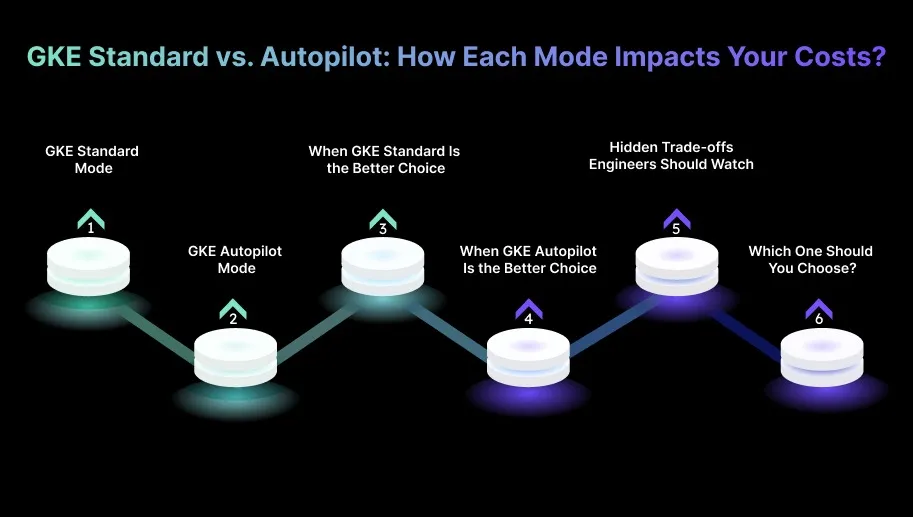
GKE Standard vs. Autopilot: How Each Mode Impacts Your Costs?
When deciding between GKE Standard and GKE Autopilot, consider how each mode affects your cloud bill and which workloads they’re best suited for. Here’s a simple breakdown to help you choose confidently.
1. GKE Standard Mode
In Standard mode, you manage the Kubernetes nodes yourself. You pay for the virtual machines (VMs) that run your worker nodes, based on the machine type, CPU, memory, and disk you choose. GKE also charges a fixed control plane fee for managing the cluster.
Key things to know:
VM Billing: You’re billed for the exact number of VMs in your node pools.
Control Plane Fee: A flat charge that applies to each cluster.
Flexibility: Full control over node configuration, including options like preemptible VMs or custom machine types.
This mode gives you the freedom to fine-tune performance and costs.
2. GKE Autopilot Mode: How Pricing Works
In Autopilot mode, Google manages the entire infrastructure layer. Instead of paying for VMs, you pay for the CPU, memory, and ephemeral storage requested by your pods. The control plane is also included in the pod-based pricing.
Key things to know:
Pod-Based Billing: You pay only for the resources your pods request, not the underlying machines.
Hands-Free Infrastructure: Google handles node creation, scaling, and patching.
No Node Management: You focus on your workloads; Google handles the rest.
This mode is built for simplicity and predictable operations.
3. When GKE Standard Is the Better Choice
Choose Standard if you need more control over infrastructure or run workloads that require specific hardware.
Best for:
Applications that need custom machine types, GPUs, or high-memory nodes.
Stateful services or workloads with heavy I/O.
Teams that want to use cost-saving features like preemptible VMs or commitment discounts.
Why it works: You can tune node sizes, optimize performance, and reduce costs through careful configuration.
4. When GKE Autopilot Is the Better Choice
Choose Autopilot if your workloads are stateless, scalable, and don’t need custom hardware.
Best for:
Microservices and stateless applications.
Teams aiming to reduce operational overhead.
Workloads that don’t need GPU support or large node configurations.
Why it works: You don’t manage nodes. Clusters scale automatically, and pricing is simpler to estimate.
5. Hidden Trade-offs Engineers Should Watch
Even though Autopilot simplifies Kubernetes operations, there’s a catch: You pay based on pod resource requests, not actual usage.
This means:
If your CPU/memory requests are too high, you pay for unused capacity.
Autopilot can become expensive for high-density or resource-heavy workloads.
In contrast:
Standard mode gives more room to optimize costs using preemptible VMs, custom machine types, and right-sized nodes.
6. Which One Should You Choose?
Here’s the easiest way to decide:
Choose Standard if:
Your workloads are predictable and resource-heavy.
You want maximum control over cost optimization.
You need GPUs, high-memory nodes, or custom hardware.
Choose Autopilot if:
Your workloads are stateless and scale dynamically.
You want to avoid managing nodes and cluster scaling.
You prefer simple, per-pod pricing.
Once you understand how Standard and Autopilot modes affect costs, you can use the Google Cloud Pricing Calculator to plan your GKE expenses more accurately.
How To Use The Google Cloud Pricing Calculator for GKE Cost Planning?
The Google Cloud Pricing Calculator is one of the easiest ways to estimate the cost of running GKE clusters. It lets you model different configurations, compare Standard vs Autopilot pricing, and understand how your infrastructure choices affect your bill.
Here’s a step-by-step guide to using it effectively.
1. Open the Google Cloud Pricing Calculator
Go to the Google Cloud Pricing Calculator and look for Google Kubernetes Engine under the Containers section. This opens the GKE configuration panel.
2. Choose Your Cluster Mode: Standard or Autopilot
If you choose Standard mode:
You’ll configure everything at the node level.
Pick a zonal or regional cluster.
Enter the number of nodes.
Select the machine type (for example: e2-medium, n1-standard-4, or custom).
Set the disk size and type (Standard/SSD).
Add GPU resources if your workloads need them.
Every change you make directly affects the VM cost.
If you choose Autopilot mode:
You don’t configure nodes. Instead:
Select Autopilot.
Enter pod resource requests for CPU, memory, and ephemeral storage.
The calculator estimates the cost based on requested pod resources rather than VMs.
This makes cost planning for pod-based workloads more predictable.
3. Enter Resource Requirements
For both modes, provide information on:
Compute: CPU and memory requirements.
Standard → per node
Autopilot → per pod
Storage: Persistent disks, snapshots, and expected data size.
Networking: Estimated egress traffic and load balancer usage.
These details help the calculator produce a more accurate estimate.
4. Select Your Region
Pricing varies across regions. Make sure you choose the actual region where your cluster will run.
This affects:
VM pricing
Storage costs
Network egress charges
Even small changes in the region can produce noticeable cost differences.
5. Review the Estimated Monthly Cost
The calculator will now generate a detailed estimate based on your inputs.
You’ll see:
Cluster management fee: $0.10/hour per cluster (unless offset by free-tier credit).
Node pool costs (Standard mode): Based on selected VMs.
Pod resource costs (Autopilot mode).
Storage: Persistent disks, snapshots.
Network: Egress traffic and load balancers.
This breakdown makes it easier to understand where most of your costs are coming from.
6. Model Scalability
The calculator allows you to simulate scaling scenarios.
You can test things like:
Adding more pods
Increasing node pools
Higher storage usage
More cross-region traffic
This is useful for estimating future costs as your application grows.
7. Explore Cost-Saving Options
Standard mode:
Preemptible VMs → significantly cheaper, ideal for batch or fault-tolerant workloads.
Sustained-use discounts → lower prices when VMs run for most of the month.
Custom machine types → avoid paying for unnecessary vCPUs or memory.
Autopilot mode:
Focus on right-sizing pod resource requests. Overprovisioned pods = unnecessary charges.
Use the calculator to test different configurations and instantly see how they impact your bill.
8. Save or Export Your Estimate
Once satisfied, you can:
Save the configuration
Export it as a detailed report
Share the estimate with your team or stakeholders
This makes it easy to include cost projections in architecture reviews or budgeting discussions.
After learning how to plan GKE costs with the pricing calculator, it’s useful to consider some smart tips to help reduce those expenses.
Fargate task sizing is often set once and never revisited. Book a demo to see how Sedai tracks actual usage and continuously adjusts resource allocations for each task.
4 Smart Tips to Reduce Your GKE Costs
Reducing costs in Google Kubernetes Engine (GKE) comes down to smart resource allocation, automation, and continuous monitoring. Here are practical tips engineers can use to optimize spending without compromising performance.
1. Enable Horizontal Pod Autoscaling
Use Horizontal Pod Autoscaling (HPA) to scale pod replicas automatically based on CPU or memory usage. This keeps pods from running idle and reduces waste by matching resources to real-time load.
2. Pick the Right Storage and Clean Up Regularly
Choose storage based on workload needs:
Standard Persistent Disks for low-performance, storage-heavy apps.
SSD Persistent Disks for high I/O apps. Delete unused disks and old snapshots to avoid paying for leftover storage. Automated cleanup policies help keep storage costs under control.
GKE optimization goes deeper than node autoscaling. Book a demo to see how Sedai handles workload rightsizing, bin-packing, and cost attribution across your GKE clusters.
3. Optimize Network Traffic
Cross-region or external traffic adds egress fees. Keep workloads within the same region and VPC whenever possible. For global apps, use Global Load Balancing to reduce unnecessary cross-region data transfer.
4. Use GKE Cost Insights and Monitoring
Use Cloud Monitoring and Cost Management tools to track resource usage. Set alerts for abnormal consumption, identify idle services, and adjust configurations proactively. Regular monitoring helps prevent cost spikes and keeps your clusters efficient.
How Sedai Helps Optimize GKE Autoscaling and Cluster Efficiency?
Many tools claim to optimize Google Kubernetes Engine (GKE) clusters, but most rely on basic autoscaling methods like Horizontal Pod Autoscaler (HPA) and Cluster Autoscaler.
These systems work on fixed thresholds, which often can’t keep up with real-world workload variations. The result is familiar: over-provisioned resources, inefficient scaling, and slower response times.
Sedai changes this by delivering true autonomous autoscaling. Instead of waiting for thresholds to be crossed, Sedai uses AI-powered models to continuously analyze workload behavior and adjust pod and node resources in real time.
Scaling decisions are based on actual demand patterns, which keep performance consistent and eliminate unnecessary resource usage. This means engineers no longer need to constantly monitor or tune the cluster.
What Sedai Offers for GKE Cost and Performance Optimization
1. Pod-Level Rightsizing (CPU & Memory)
Sedai studies live usage metrics to dynamically adjust pod requests. This prevents both over- and under-provisioning, helping teams cut cloud costs by up to 30% while ensuring pods always have the right amount of CPU and memory.
2. Node Pool and Instance-Type Optimization
By evaluating cluster-wide resource behavior, Sedai identifies the most efficient node types for each workload. This reduces idle capacity and can improve application performance by up to 75%, while keeping costs in check.
3. Autonomous Scaling Decisions
Sedai’s machine learning engine proactively scales pods and nodes based on workload patterns. This intelligent approach has shown a 70% reduction in failed interactions because scaling happens in anticipation of demand, not after thresholds are breached.
4. Automatic Remediation
Sedai detects early signs of degradation, resource pressure, or pod instability and resolves them automatically. This automation increases engineering productivity by 6x, freeing teams from manual troubleshooting and firefighting.
5. Full-Stack Cost and Performance Optimization
Sedai optimizes more than just compute. It evaluates storage, networking, and commitment levels to ensure autoscaling remains cost-efficient end-to-end.
This holistic view has delivered up to 50% cost savings for teams running large Kubernetes environments.
6. Multi-Cluster and Multi-Cloud Support
Whether you're running GKE, EKS, AKS, or on-prem Kubernetes, Sedai applies the same optimization intelligence across all environments. With $3.5 million in managed cloud spend, Sedai provides consistent optimization across multi-cloud and hybrid architectures.
7. SLO-Driven Scaling
Sedai ties autoscaling decisions to your Service Level Objectives (SLOs) and Service Level Indicators (SLIs), ensuring reliability during load changes. This keeps service availability high while maintaining performance during peak activity.
Sedai makes it simple to keep your GKE clusters efficient and responsive. By using machine learning to automate rightsizing, scaling, and remediation, Sedai removes the guesswork from cluster management and helps teams run Kubernetes at peak efficiency.
If you’re looking to optimize your GKE autoscaling with Sedai, try our ROI calculator to estimate how much you can save by reducing resource waste, improving performance, and eliminating manual tuning.
Final Thoughts
While optimizing your Google Cloud Kubernetes cluster costs can deliver quick savings, the real long-term impact comes from continuous monitoring and proactive adjustments.
One powerful but often overlooked strategy is predictive cost modeling. By analyzing historical usage patterns, you can forecast future spending and prepare for workload changes before they cause cost spikes.
Pairing this with machine learning tools that predict resource needs and adjust clusters in real-time helps teams stay ahead of unexpected expenses. This is where Sedai comes in.
By using its autonomous optimization capabilities, Sedai continuously analyzes workload behavior, predicts resource requirements, and automatically adjusts GKE clusters for cost efficiency.
GKE cost control requires more than setting Spot node pools. Book a demo to see how Sedai continuously optimizes workload placement and cuts cluster spend over time.
FAQs
Can I run hybrid workloads in GKE with on-premise resources?
Yes, you can run hybrid workloads using Anthos. Anthos lets you manage and deploy workloads across both GKE and your on-premise Kubernetes clusters from a single control plane. This makes it easy to extend applications across environments while keeping a consistent Kubernetes experience.
How does GKE integrate with CI/CD pipelines for Kubernetes deployments?
GKE integrates seamlessly with CI/CD tools such as Jenkins, GitLab CI, GitHub Actions, and Cloud Build. You can also use tools like Argo CD to bring GitOps workflows into your deployments for better consistency and version control.
What are the best practices for managing large-scale GKE clusters?
Use multi-cluster setups or fleet management to distribute workloads.
Adopt GitOps tools like Argo CD or Flux for consistent configuration across clusters.
Enable Horizontal Pod Autoscaling (HPA) and Vertical Pod Autoscaling (VPA) for efficient resource use.
Use Cloud Operations Suite for monitoring, alerting, and centralized logging to maintain visibility.
How can I monitor and optimize GKE costs effectively?
Use Google Cloud’s Cost Management tools to track spending and set budget alerts. Use cloud monitoring and logging to identify over-provisioned or unused resources. Enable autoscaling to match resources with actual workload demand.
What is the impact of using regional clusters on GKE pricing?
Regional clusters improve availability by spreading nodes across multiple zones, but this also increases cost because you’re effectively running more resources. Costs may increase for additional nodes, network traffic, load balancing, and storage replication.


.webp%3Fv%3D2026-04-09T18%253A41%253A05.143Z&w=3840&q=75)