How does Azure pricing work for different services?
Azure pricing varies by service category, resource size, region, and management level. Costs are typically usage-based, with charges for compute, storage, and network usage. For example, running 5 Windows VMs (B2ats v2) for 30 days costs about $71.28, while storing 200GB in Hot Blob Storage for a month costs $3.60. (Source: Azure Pricing Guide 2026)
What are the main cost drivers in Azure?
The main cost drivers in Azure are compute power, memory allocation, storage volume and tier, network traffic (especially outbound/egress), and geographic region. Larger VM sizes, higher memory, and more storage or bandwidth usage increase costs. (Source: Azure Pricing Guide 2026)
How much does it cost to run a minimal workload on Azure?
Example monthly costs: 5 Windows VMs (B2ats v2) for 30 days: $71.28; Azure Functions with 4 million executions/day: $24.00; 200GB in Hot Blob Storage: $3.60; 200GB in Cool Blob Storage: $2.00. (Source: Azure Pricing Guide 2026)
How do Azure regions affect pricing?
Azure pricing varies by region due to differences in infrastructure, energy, labor, and regulatory costs. Running identical resources in different regions can result in different charges. Deploying workloads in lower-cost regions can save up to 40%. (Source: Azure Pricing Guide 2026)
What are the different Azure purchase models?
Azure offers Pay-As-You-Go (PAYG), Enterprise Agreement (EA), Cloud Solution Provider (CSP), and Microsoft Azure Consumption Commitment (MACC). PAYG offers flexibility, EA provides volume discounts for multi-year commitments, CSP is for flexible billing, and MACC offers discounts for committed spend. (Source: Azure Pricing Guide 2026)
How does Azure licensing impact total costs?
Licensing costs are included for Windows Server VMs, but organizations with existing licenses and Software Assurance can use Azure Hybrid Benefit to reduce costs. Dev/Test subscriptions offer further discounts for non-production workloads. (Source: Azure Pricing Guide 2026)
What is the Azure Free Tier and what does it include?
The Azure Free Tier offers select services free for 12 months (e.g., 750 hours/month of Linux/Windows VMs), a $200 credit for the first 30 days, and ongoing free services like 1 million Azure Functions executions/month and 1 web app with 1GB storage. (Source: Azure Pricing Guide 2026)
How does Azure Spot Pricing work?
Spot Instances allow access to unused Azure compute capacity at discounts up to 90% compared to PAYG rates. These instances can be evicted at short notice and are best for fault-tolerant, batch, or stateless workloads. (Source: Azure Pricing Guide 2026)
What is Azure Hybrid Benefit and how much can it save?
Azure Hybrid Benefit lets organizations reuse existing Windows Server and SQL Server licenses in Azure, reducing costs by up to 85% when combined with Reserved Instances. (Source: Azure Pricing Guide 2026)
How does Azure price matching work?
Azure offers price matching for select services (e.g., Linux VMs, Azure Functions, Blob Storage) when AWS offers lower prices. Azure reviews and adjusts pricing quarterly to maintain cost parity. (Source: Azure Pricing Guide 2026)
Azure Cost Optimization & Management Tools
What tools does Azure provide for cost management?
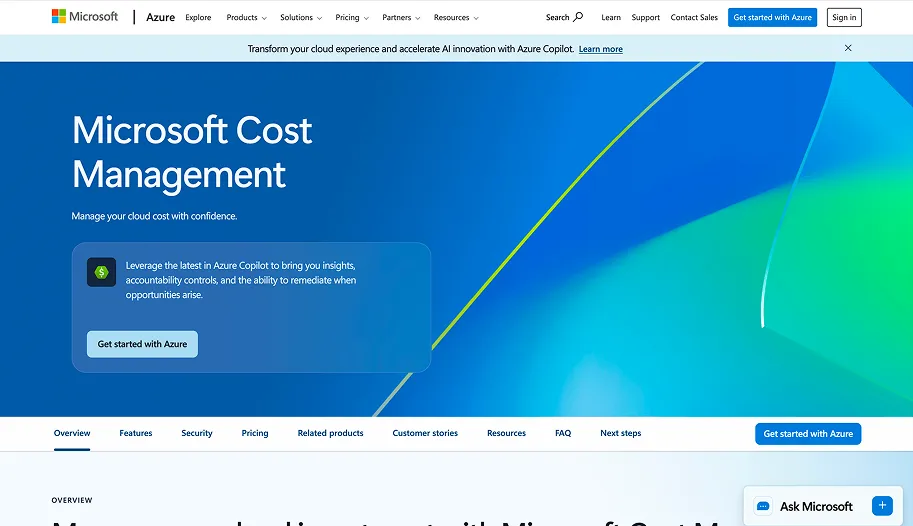
Azure provides Cost Analysis, Advisor, Budgets, Price Calculator, and Cost Management Exports. These tools help track usage, analyze costs, set budgets, estimate pricing, and export data for reporting. (Source: Azure Pricing Guide 2026)
How does Sedai help manage and optimize Azure costs?
Sedai autonomously optimizes Azure resources in real time, rightsizing infrastructure, tuning workloads, and resolving performance issues without manual intervention. It typically delivers 30–50% cost savings, reduces failed customer interactions by 50%, and improves performance by up to 6x. (Source: Azure Pricing Guide 2026, Sedai Solution Briefs)
What makes Sedai different from Azure's built-in cost tools?
Unlike Azure's built-in tools that surface cost data and recommendations for manual action, Sedai acts autonomously—analyzing usage patterns, predicting needs, and making real-time adjustments to optimize cost and performance without manual intervention. (Source: Azure Pricing Guide 2026, Sedai Solution Briefs)
How does Sedai ensure safety and reliability when optimizing Azure environments?
Sedai uses learned behavior profiles and built-in safety checks to prevent disruption. It establishes baselines, introduces changes gradually, and maintains stability while improving performance. (Source: Azure Pricing Guide 2026, Sedai Solution Briefs)
What are the key features of Sedai for Azure users?
Sedai offers autonomous optimization, proactive uptime automation, real-time anomaly detection, and continuous rightsizing. It integrates with Azure and delivers measurable outcomes like 30–50% cost savings and up to 75% lower latency. (Source: Azure Pricing Guide 2026, Sedai Solution Briefs)
How does Sedai compare to Azure Advisor for cost optimization?
Azure Advisor provides recommendations for manual action, while Sedai autonomously implements optimizations in real time, reducing manual effort and delivering continuous cost and performance improvements. (Source: Azure Pricing Guide 2026, Sedai Solution Briefs)
What is the typical cost savings when using Sedai with Azure?
Sedai typically delivers 30–50% cost savings for Azure environments by continuously rightsizing resources and optimizing workloads. (Source: Azure Pricing Guide 2026, Sedai Solution Briefs)
How does Sedai help with Azure performance and reliability?
Sedai reduces latency by up to 75%, proactively resolves issues before they impact users, and reduces failed customer interactions by up to 50%. (Source: Sedai Solution Briefs, Belcorp Case Study)
What is the implementation process for Sedai on Azure?
Sedai offers a plug-and-play implementation that takes about 5 minutes for general use cases and up to 15 minutes for specific scenarios like AWS Lambda. It connects securely to cloud accounts using IAM, with agentless integration and comprehensive onboarding support. (Source: Sedai Get Started, Sedai Solution Briefs)
Azure VM, Storage & Networking Pricing
How are Azure Virtual Machines priced?
VMs are priced by category (General Purpose, Compute-Optimized, Memory-Optimized, Storage-Optimized, GPU, HPC), with starting prices ranging from $0.0846/hour (Compute-Optimized) to $0.90/hour (GPU). Pricing depends on CPU, memory, storage, and region. (Source: Azure Pricing Guide 2026)
What are the pricing tiers for Azure Blob Storage?
Blob Storage tiers: Archive ($0.00099/GB), Cool ($0.01/GB), Hot ($0.018/GB), Premium (up to $0.15/GB for first 50TB). Costs decrease with higher volumes; access and transaction fees apply for Cool and Archive tiers. (Source: Azure Pricing Guide 2026)
How is Azure Files storage priced?
Azure Files pricing: Cool tier ($0.0228/GiB/month), Hot tier ($0.0287/GiB/month), Transaction Optimized ($0.0600/GiB/month). Additional charges for snapshots, data transactions, and outbound data. (Source: Azure Pricing Guide 2026)
How are Azure networking costs calculated?
Networking costs include VNet peering ($0.01/GB intra-region, $0.035–$0.16/GB global), VPN Gateway (from $0.04/hour for basic to $3.65/hour for VpnGw5), and outbound bandwidth (starts at $0.087/GB after first 5GB free). (Source: Azure Pricing Guide 2026)
What are the best ways to manage storage costs in Azure?
Use tiered storage (Hot, Cool, Archive) based on access frequency, and implement lifecycle management policies to automatically move data to lower-cost tiers. (Source: Azure Pricing Guide 2026)
Automation, Compliance & Implementation
How can I automate scaling of Azure resources?
Azure Monitor and Application Insights allow you to set up automated scaling rules based on performance metrics. Azure Automation and Logic Apps can trigger scaling actions based on CPU, memory, or latency. (Source: Azure Pricing Guide 2026)
How can I ensure my Azure environment is compliant and cost-efficient?
Regularly audit resource configurations, use Azure Policy and Blueprints to enforce governance, and monitor costs with Azure Cost Management. (Source: Azure Pricing Guide 2026)
How do Azure pricing changes affect my existing services?
Azure updates pricing periodically by region, resource type, and usage. Monitoring changes in Azure Cost Management helps you adjust allocations or purchase models to avoid unexpected costs. (Source: Azure Pricing Guide 2026)
Sedai Platform: Features, Use Cases & Competitive Differentiation
What is Sedai and what does it do for Azure users?
Sedai is an autonomous cloud management platform that optimizes Azure (and other cloud) resources for cost, performance, and availability using machine learning. It eliminates manual intervention, reduces costs by up to 50%, and improves reliability. (Source: Sedai Solution Briefs)
What are the modes of operation in Sedai?
Sedai offers Datapilot (observability), Copilot (one-click optimizations), and Autopilot (fully autonomous execution), allowing flexibility for different operational needs. (Source: Sedai Solution Briefs)
What are the key benefits of using Sedai?
Sedai reduces cloud costs by up to 50%, improves performance (up to 75% latency reduction), enhances reliability, and delivers up to 6x productivity gains by automating routine tasks. (Source: Sedai Solution Briefs)
Who can benefit from using Sedai?
Sedai is designed for platform engineers, IT/cloud ops, technology leaders, SREs, and FinOps teams in organizations with significant cloud operations, especially those using multi-cloud environments like Azure, AWS, GCP, and Kubernetes. (Source: Sedai Buyer Personas)
What pain points does Sedai solve for Azure users?
Sedai addresses cost inefficiencies, operational toil, performance and latency issues, lack of proactive issue resolution, complexity in multi-cloud/hybrid environments, and misaligned priorities between engineering and finance teams. (Source: Sedai Buyer Personas)
How does Sedai compare to other cloud optimization tools?
Sedai offers 100% autonomous optimization, proactive issue resolution, application-aware intelligence, and full-stack cloud coverage, while many competitors rely on manual adjustments, static rules, or focus on specific areas. (Source: Sedai Solution Briefs)
What integrations does Sedai support for Azure environments?
Sedai integrates with Azure Monitor, Azure, Kubernetes autoscalers, GitHub, GitLab, Bitbucket, Terraform, ServiceNow, Jira, Slack, Microsoft Teams, and various runbook automation platforms. (Source: Sedai Technology Overview)
What security and compliance certifications does Sedai have?
Sedai is SOC 2 certified, demonstrating adherence to stringent security and compliance standards. (Source: Sedai Security Page)
Where can I find technical documentation for Sedai?
Technical documentation for Sedai is available at https://docs.sedai.io/get-started, including setup guides, feature overviews, and troubleshooting resources. (Source: Sedai Documentation)
What industries use Sedai for Azure optimization?
Industries include cybersecurity (Palo Alto Networks), IT (HP), financial services (Experian, CapitalOne), security awareness (KnowBe4), travel (Expedia), healthcare (GSK), car rental (Avis), retail/e-commerce (Belcorp), SaaS (Freshworks), and digital commerce (Campspot). (Source: Sedai Case Studies)
Can you share customer success stories with Sedai on Azure?
KnowBe4 achieved 50% cost savings and saved $1.2M on AWS (similar optimization applies to Azure). Palo Alto Networks saved $3.5M and reduced Kubernetes costs by 46%. Belcorp reduced AWS Lambda latency by 77%. (Source: Sedai Case Studies)
How easy is it to get started with Sedai for Azure?
Sedai offers a quick setup (5–15 minutes), agentless integration, personalized onboarding, and a 30-day free trial. Extensive documentation and support are available. (Source: Sedai Get Started, Sedai Solution Briefs)
What feedback have customers given about Sedai's ease of use?
Customers highlight Sedai's plug-and-play setup, agentless integration, personalized onboarding, and comprehensive support as key factors for its ease of use. (Source: Sedai Get Started, Sedai Pricing)
Understanding Azure pricing models is crucial for managing costs effectively, from VM sizes and resource allocations to storage and network usage. Key cost drivers such as compute power, memory allocation, and regional differences can quickly escalate if not monitored closely. By strategically selecting the right pricing models, like Pay-As-You-Go or Reserved Instances, and using the appropriate storage tiers, you can optimize costs.
Azure pricing can be complex, with multiple services, regions, and configurations directly influencing your cloud costs. Without careful planning, expenses can escalate quickly due to factors such as over‑provisioning, underutilized resources, and inefficient scaling practices.
Understanding Azure’s pricing models, from Pay‑As‑You‑Go to Reserved Instances and Spot Pricing, is essential for optimizing spend.
For instance, committing to a Reserved Instance can lower costs by up to72% compared to Pay‑As‑You‑Go rates for predictable workloads, making long-term expenditures more efficient and manageable.
Ready to reduce your Azure cloud costs?
Book a Sedai demo to learn how to optimize Azure spend, maximize discounts, and improve cost visibility.
In this blog, you’ll explore the key elements that drive Azure pricing, including primary cost drivers, available discounts, and tools for effective cost management, providing engineers and teams with actionable insights to control cloud spend.
How Much Does Azure Cost Per Month?
Microsoft Azure offers a wide range of cloud services spanning compute, storage, networking, and analytics. These services can run in the Azure public cloud, on-premises, or as part of a hybrid deployment, giving your teams flexibility in how they design and operate their infrastructure.
Azure pricing depends on several variables, including the service category, resource size, region, and the level of management involved.
To ground this in practical terms, the following example outlines estimated pricing for a minimal workload across common Azure services.
Service
Pricing Factor
Starting Price
Example Workload
Monthly Price
Windows Virtual Machines (VMs)
VM hourly usage
$0.0198/hour
Running 5 VMs (B2ats v2) for 30 days
$71.28
Azure Functions
Per million executions
$0.20 per million executions
A serverless function with 4 million executions per day for 30 days
$24.00
Block Blob Storage (LRS Hot tier)
Per GB
$0.018 per GB
Storing 200GB in Hot storage for 1 month
$3.60
Block Blob Storage (LRS Cool tier)
Per GB
$0.01 per GB
Storing 200GB in Cool storage for 1 month
$2.00
Knowing the typical monthly costs in Azure helps make sense of what specific services and features contribute to those expenses.
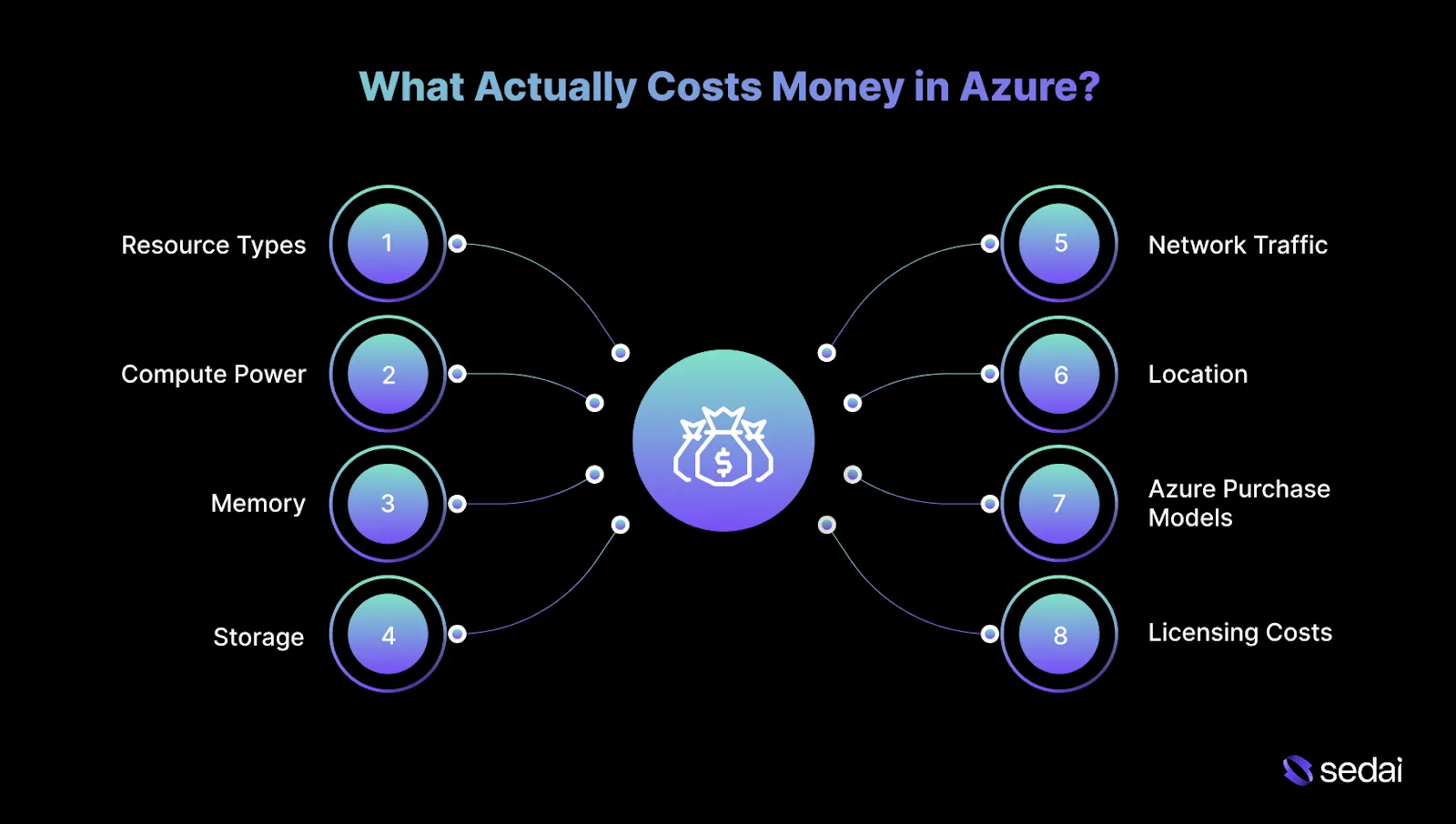
What Actually Costs Money in Azure?
Understanding what drives costs in Azure is essential to efficiently operate cloud environments at scale. Azure pricing is influenced by multiple variables, including resource types, service configurations, geographic regions, and network usage patterns.
Here’s the breakdown of the most significant cost drivers in Azure and how they affect day-to-day infrastructure decisions.
1. Resource Types
Resource types refer to the specific Azure services in use, each with its own pricing model. Costs are typically tied to one or more usage-based metrics such as runtime, allocated storage, or processing capacity.
Virtual Machines (VMs): VM pricing depends on characteristics such as CPU cores, memory, and storage configuration. Charges are incurred based on how long the VM runs. Larger VM sizes deliver higher performance but increase hourly costs accordingly.
Azure SQL Database: SQL database pricing is driven by allocated compute, memory, and storage, with costs accruing while the database remains active.
Key Insight: Compute capacity, memory allocation, and storage volume are the primary contributors to Azure resource costs. As resource capabilities increase, so does the associated spend.
2. Compute Power
Most Azure workloads rely on compute in some form, whether through virtual machines, managed services, or data processing pipelines. Compute costs rise as processing requirements increase.
Tip: Autoscaling helps align compute usage with real demand, reducing the risk of over-provisioning during periods of low utilization.
3. Memory
Azure services that require higher memory allocations generally cost more. Memory-optimized services and VM families are priced at a premium because they efficiently handle large in-memory workloads.
Tip: Where supported, dynamic memory allocation can help avoid paying for unused capacity, especially for workloads with variable usage patterns.
4. Storage
Data storage in Azure introduces ongoing costs that depend on data volume, storage type, access frequency, and redundancy configuration.
Storage Tiers: Azure provides multiple storage tiers, including Hot, Cool, and Archive, each optimized for different access patterns. Hot storage offers fast access at a higher cost, while Archive storage is significantly cheaper but incurs retrieval delays and fees.
Redundancy: Storage pricing also varies based on redundancy options such as Locally Redundant Storage (LRS) or Geo-Redundant Storage (GRS).
Key Insight: Storage costs scale with capacity and access frequency. Selecting the appropriate tier based on how data is used is critical for cost control.
5. Network Traffic and Bandwidth
Network usage is another major cost driver, particularly for workloads that move large volumes of data.
Ingress (Inbound Traffic): Data entering Azure is typically not charged.
Egress (Outbound Traffic): Data leaving Azure incurs costs, which can increase quickly at scale.
Inter-Region Transfers: Moving data between Azure regions, such as from West US to East US, results in additional charges.
Tip: Designing architectures that minimize outbound traffic or keep data within a single region can significantly reduce networking costs.
6. Location
Azure operates across more than 100 data centers in 36 regions worldwide, and pricing can vary depending on where resources are deployed.
Regional Pricing Differences: Running identical VM configurations in different regions may result in different costs due to local infrastructure and operational factors.
Infrastructure Expenses: Pricing variations reflect differences in energy costs, labor, real estate, and regulatory requirements.
Tip: Deploy workloads close to end users to reduce latency, and consider lower-cost regions for development or testing environments, where savings of up to 40% are often possible.
7. Azure Purchase Models
Azure offers multiple purchasing options, each suited to different usage patterns and commitment levels.
Pay-As-You-Go (PAYG): Offers maximum flexibility but typically results in the highest costs for long-running workloads.
Enterprise Agreement (EA): Designed for large organizations, offering volume-based discounts in exchange for multi-year commitments.
Cloud Solution Provider (CSP): Provides discounted pricing and flexible billing, often suited to organizations with fluctuating consumption.
Microsoft Azure Consumption Commitment (MACC): Offers discounts in return for committing to a defined spend level over a fixed term.
Key Insight: Selecting the right purchase model can materially reduce costs, particularly for predictable or long-lived workloads.
Not sure which Azure pricing model gives you the best deal? Book a demo and see exactly where Sedai finds savings in your Azure environment.
8. Licensing Costs
Licensing can be a meaningful component of total Azure spend, especially for workloads running licensed operating systems or databases.
Windows Server VMs: Licensing costs are included in the price of Windows-based virtual machines. Organizations with existing licenses and Software Assurance may reduce costs through the Azure Hybrid Benefit.
Tip: For non-production workloads, such as development or testing, Dev/Test subscriptions can help avoid unnecessary licensing expenses.
Once you’re aware of what incurs charges, exploring what the Azure Free Tier provides becomes more meaningful.
Azure’s Free Tier includes a set of services designed to help companies and engineering teams get started without incurring immediate cloud costs.
The free offerings are organized into three categories: services that are free for 12 months, a one-time credit available during the first 30 days, and services that remain free on an ongoing basis.
1. 12-Month Free Use
When a new Azure account is created, access is provided to a selection of services at no cost for the first 12 months, each with defined usage limits.
This tier is commonly used for testing, development, and small-scale production workloads. Some of the key services available during this period include:
Compute Services:
Service Type
Usage Limit
Typical Use Cases
Linux Virtual Machines
Up to 750 hours per month
Lightweight applications, development environments
Windows Virtual Machines
Up to 750 hours per month
Small applications, proof-of-concept deployments, development workloads
Storage Services:
Storage Service
Free Tier Allocation
Typical Use Cases
Azure Managed Disks
Limited storage capacity
Testing VM disk configurations and performance characteristics
Azure Blob Storage
5 GB Hot storage with capped read/write ops
Evaluating object storage behavior
Azure Files
Up to 5 GB file storage
Testing file sharing and basic storage scenarios
Database Services:
Database Service
Free Tier Scope
Typical Use Cases
Azure SQL Database (Microsoft SQL Server)
Small development database with limited capacity
Testing applications, development, and basic database workloads
Azure Cosmos DB (NoSQL)
Defined usage limits
Experimenting with NoSQL workloads and global distribution features
AI and Analytics Services:
AI / Analytics Service
Free Tier Access
Typical Use Cases
Computer Vision
Limited API calls
Image recognition and processing for small projects or evaluations
Text Analytics
Supported features within usage limits
Sentiment analysis, language detection, key phrase extraction
Translator
Limited multilingual translation access
Building and testing translation features
Personalizer
Basic usage limits
Content personalization and recommendation scenarios
Language Understanding (LUIS)
Limited usage
Building and testing natural language–driven interfaces
Each of these services includes strict usage caps, making active monitoring important to prevent unexpected charges once free limits are exceeded.
2. One-Time $200 Credit for the First 30 Days
New Azure accounts also receive a one-time $200 credit that can be used during the first 30 days. This credit applies across most Azure services and is often used to evaluate offerings that fall outside the 12-month free tier or require higher capacity.
The credit can be applied toward:
High-performance virtual machines that exceed free tier limits.
Premium storage options that provide higher throughput and redundancy.
Services not included in the free tier, such as Azure Kubernetes Service (AKS) or advanced Azure App Service configurations for more complex workloads.
Once either the 30 days end or the $200 credit is exhausted, continued usage requires a transition to paid pricing.
3. Ongoing Free Services
Azure also includes a set of services that remain free on an ongoing basis, independent of the 12-month free tier or the initial credit. These offerings are designed for lightweight workloads, development use cases, and small-scale applications:
Service
Free Tier Offering
Typical Use Cases
Azure App Service
1 web app with up to 1 GB storage
Testing applications and simple web deployments
Azure Functions
1 million free executions per month
Serverless applications and event-driven workloads
Azure DevOps
Free for up to 5 users
CI/CD pipelines, source control, and project tracking for small teams
Azure Active Directory (AD)
Basic user and group management, SSO for 10 apps
Identity management and secure access for applications
These services are often used to prototype applications, test integrations, and evaluate Azure capabilities without introducing immediate budget impact.
Once you’re familiar with what the Free Tier offers, exploring how Azure’s pricing works becomes clearer.
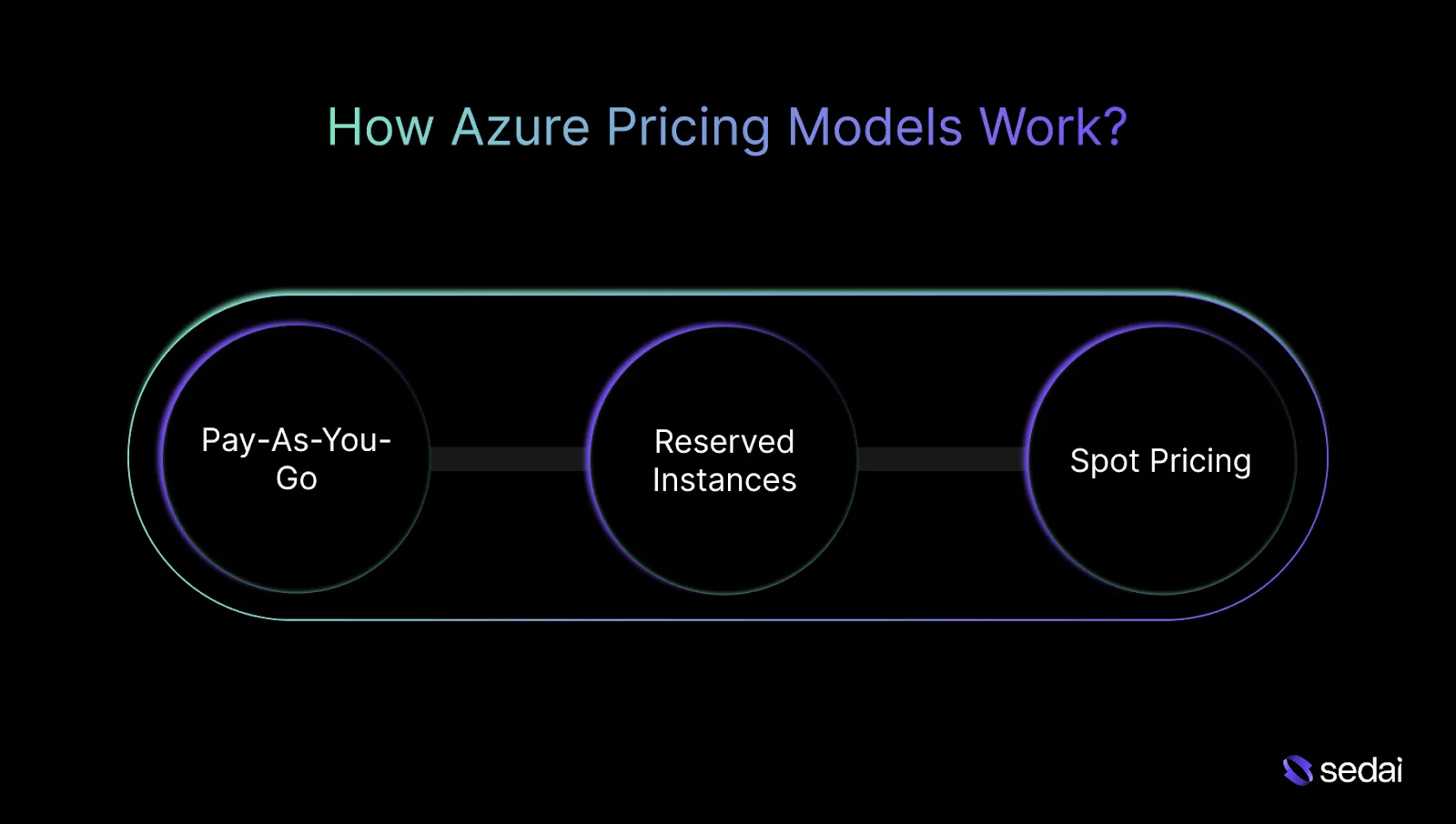
How Azure Pricing Models Work?
Azure provides three primary pricing models for virtual machines (VMs) and other cloud resources: Pay-As-You-Go, Reserved Instances, and Spot Instances.
Each model supports different workload patterns and allows your teams to optimize costs based on how applications actually consume compute.
Below is an overview of how each model works and when it is typically used.
1. Pay-As-You-Go
The Pay-As-You-Go (PAYG) model charges based on actual resource usage, with no upfront commitment or long-term contract. Azure bills VM usage per second, allowing resources to scale dynamically as workload demand changes.
How It Works:
Charges accrue only for the time resources are running. For example, if a VM runs for 10 hours, billing applies only to those 10 hours. Costs scale directly with usage, and autoscaling can adjust VM size or count automatically in response to demand.
When to Use:
PAYG is well-suited for workloads with variable or short-lived usage patterns, such as development and testing environments, experimental projects, or applications with unpredictable traffic. It is also commonly used by organizations that prefer operational expenditure over long-term commitments.
Key Benefit:
Operational flexibility. Resources can scale up or down without paying for unused capacity.
2. Reserved Instances
Azure Reserved Instances (RIs) allow teams to commit to VM usage for a one- or three-year term within a specific region.
How It Works:
Reserved Instances involve pre-purchasing compute capacity at a discounted rate. While the commitment is fixed, Azure allows limited flexibility, including exchanging reservations for different VM sizes within the same family or canceling reservations. This is subject to an early termination fee.
When to Use:
RIs are best suited for steady, long-running workloads with predictable usage patterns, such as core application services, databases, or enterprise systems that require continuous availability.
They are commonly used in environments with stable infrastructure baselines and budget predictability.
Key Benefit:
Substantial cost savings in exchange for long-term usage commitments.
3. Spot Pricing
Spot Instances allow access to unused Azure compute capacity at discounts of up to 90% compared to PAYG rates. Because this capacity is not guaranteed, Spot Instances can be evicted at short notice.
How It Works:
Spot Instances consume excess Azure capacity and can be integrated into Virtual Machine Scale Sets (VMSS) to manage scaling and workload distribution automatically. Azure may interrupt or terminate these instances when capacity is needed elsewhere.
When to Use:
Spot Instances are well-suited for fault-tolerant, distributed workloads such as batch processing, rendering jobs, large-scale data processing, or stateless applications that can recover from interruptions.
They are particularly effective for parallel workloads that do not require continuous uptime.
Key Benefit:
Significant cost reductions for non-critical workloads that can tolerate interruptions.
Once you understand how Azure’s pricing models work, it makes it easier to identify ways to save on costs.
Not sure which Azure pricing model gives you the best deal? Book a demo and see exactly where Sedai finds savings in your Azure environment.
3 Key Ways to Save Money on Azure
Azure provides several additional programs and pricing features that help engineering teams further optimize cloud spend. These options are especially useful when licensing, development environments, or cross-cloud cost comparisons are involved.
1. Azure Hybrid Benefit
Azure Hybrid Benefit enables organizations to reduce costs by reusing existing Windows Server and SQL Server licenses in Azure.
For teams already running Microsoft workloads on-premises, this benefit can significantly lower the total cost of ownership when migrating to the cloud.
How It Works:
If you own Windows Server or SQL Server licenses with active Software Assurance, those licenses can be applied to Azure virtual machines and Azure SQL services. This shifts pricing from full-licensed rates to compute-only costs, reducing overall VM or database costs.
Savings Potential:
When combined with Reserved Instances, Azure Hybrid Benefit can reduce the cost of running Windows Server or SQL Server workloads in Azure by up to 85%.
Bonus:
For select Windows Server and SQL Server versions, Azure provides up to three years of free extended security updates. This removes the need for costly license extensions while maintaining security compliance.
2. Azure Dev/Test Pricing
Azure offers dedicated pricing discounts for development and testing environments, helping teams control costs without limiting access to production-grade services.
Windows VMs at Linux Pricing:
In dev/test environments, Windows virtual machines are billed at Linux VM rates. This effectively removes the Windows licensing cost and provides a meaningful cost advantage for development workloads.
Azure SQL Database:
Development and testing workloads can receive discounts of up to 55% on Azure SQL Database, making it more cost-effective to build, prototype, and validate applications.
Logic Apps:
Logic Apps used in dev/test scenarios are eligible for savings of up to 50%, reducing the cost of workflow automation and service integration during development cycles.
3. Azure Price Matching
To remain competitive across major cloud providers, Azure offers price matching for select services when equivalent AWS offerings are priced lower. This helps ensure cost parity when evaluating or running workloads across clouds.
Services Included: Price matching applies to:
Linux virtual machines (compared to AWS EC2)
Azure Functions (compared to AWS Lambda)
Azure Blob Storage (ZRS Hot and Cool tiers compared to AWS S3 Standard and Standard-IA)
How It Works:
Azure reviews and adjusts pricing on a quarterly basis to align with AWS rates for comparable services. This can be particularly valuable when scaling workloads or making provider decisions based on cost efficiency.
Knowing how to save on Azure costs makes it easier to understand the specifics of Azure Virtual Machine pricing.
Azure virtual machines are grouped into families based on how they balance CPU, memory, storage, and networking. Choosing the right category helps avoid overprovisioning and keeps infrastructure costs under control.
Here’s a breakdown of the main categories, their use cases, and starting pricing:
VM Category
Ideal For
Starting Price
Use Case Example
General Purpose VMs
Balanced CPU and memory for general workloads
$0.096/hour
Hosting web apps, running dev/test environments, and small databases
Compute-Optimized VMs
CPU-intensive tasks
$0.0846/hour
Running backend services, batch processing jobs
Memory-Optimized VMs
Memory-intensive tasks
$0.126/hour
In-memory data processing, caching services, relational databases
Storage-Optimized VMs
High storage throughput
$0.624/hour
Data warehousing, big data analytics, transactional databases
GPU-Enabled VMs
Deep learning, graphics rendering
$0.90/hour
AI model training, 3D rendering, video editing
High-Performance Computing VMs
High-powered distributed compute
$0.796/hour
Large-scale simulations, complex data analysis, and scientific research
Knowing how virtual machines are priced helps provide context for understanding Azure storage pricing.
Azure Storage Pricing Explained
Azure Storage provides scalable, durable, and secure options for a wide range of workloads, including object storage, shared file systems, messaging, and NoSQL-backed applications.
Each storage service follows a different pricing model based on performance characteristics, access patterns, and usage volume. Below are the most commonly used and cover the majority of general storage needs.
1. Azure Blob Storage
Azure Blob Storage is Azure’s object storage service, designed for large volumes of unstructured data such as logs, documents, images, and video assets. Pricing varies by storage tier and is directly influenced by access frequency and retrieval behavior.
Pricing Tiers:
Archive Tier: Designed for rarely accessed data. Pricing starts at $0.00099 per GB, making it the lowest-cost option, though with higher retrieval latency.
Cool Tier: Intended for infrequently accessed data that still needs reasonably fast retrieval. Pricing starts at $0.01 per GB.
Hot Tier: Optimized for frequently accessed data with low latency requirements. Pricing starts at $0.018 per GB.
Premium Tier: Built for high-performance, transactional workloads requiring consistent low latency and high throughput. Pricing can reach $0.15 per GB for the first 50 TB.
Cost Considerations:
Volume-based pricing: The per-GB cost decreases as total stored data increases.
Access and transaction costs: Read, write, and data retrieval operations incur additional charges, especially for Cool and Archive tiers.
Tip: Storage tier selection should align with real access patterns. Moving infrequently accessed data from Hot to Cool or Archive tiers can significantly reduce ongoing storage costs without impacting system design.
2. Azure Files
Azure Files provides fully managed file shares in the cloud and supports both SMB and NFS. This makes it suitable for lifting and shifting traditional file-based workloads from on-premises environments.
Pricing Tiers:
Cool Tier: Priced at $0.0228 per GiB/month, designed for data that is accessed occasionally but must remain available.
Hot Tier: Priced at $0.0287 per GiB/month, optimized for workloads with frequent read and write operations.
Transaction Optimized Tier: Priced at $0.0600 per GiB/month, suited for workloads with variable access patterns and higher transaction intensity.
Additional Charges:
Snapshots: Additional costs apply for snapshot storage.
Data transactions: Read and write operations are billed separately.
Data egress: Transferring data out of Azure incurs outbound bandwidth charges.
Tip: Tier selection should be driven by access frequency and write intensity. For workloads with frequent file updates or mixed access patterns, Transaction-Optimized storage often delivers more predictable performance, even at a higher base cost.
Once Azure storage pricing is clear, it’s helpful to look at how networking costs are calculated.
Azure Networking Costs Explained
Networking is a core component of any Azure environment and can significantly impact overall cloud costs. Whether you’re working with Virtual Networks (VNets), VPN Gateways, or data transfer, understanding how Azure prices networking services is essential for effective cost management.
Below is a breakdown of the key networking-related costs in Azure.
1. Virtual Network Pricing
Azure Virtual Network (VNet) allows you to build private, isolated networks in the cloud. Creating a VNet itself is free, with support for up to 1,000 VNets per subscription.
However, costs arise when using VNet Peering, which enables communication between two VNets.
Intra-Region VNet Peering:
Inbound data transfer: $0.01 per GB
Outbound data transfer: $0.01 per GB
Global VNet Peering (across regions):
US and Europe: $0.035 per GB
Australia and Asia: $0.09 per GB
South America and Africa: $0.16 per GB
Tip: Keep VNets within the same region wherever possible to minimize peering costs. Using Private Endpoints and VNet Integration can also help reduce cross-region data transfers.
2. VPN Gateway Pricing
Azure VPN Gateway enables secure, encrypted connectivity between on-premises networks and Azure VNets. While the VNet itself is free, the VPN Gateway is billed based on its SKU, bandwidth capacity, and the number of tunnels configured.
Basic VPN Gateway: Starts at $0.04 per hour, offering 100 Mbps bandwidth, with support for 10 Site-to-Site (S2S) tunnels and 128 Point-to-Site (P2S) tunnels.
VPN Gateway SKUs and Pricing:
VPN Gateway SKU
Hourly Cost (USD)
Throughput Capacity
VpnGw1
$0.19 per hour
650 Mbps
VpnGw2
$0.49 per hour
1 Gbps
VpnGw3
$1.25 per hour
1.25 Gbps
VpnGw4
$2.10 per hour
5 Gbps
VpnGw5
$3.65 per hour
10 Gbps
Tunnel Costs:
Included tunnels: The first 10 S2S or P2S tunnels are typically included.
Additional tunnels: $0.015 per hour per tunnel beyond the included limit.
Tip: Select the VPN Gateway SKU based on actual throughput and latency requirements. Higher-tier gateways improve performance, but tunnel costs can add up quickly as connectivity scales.
3. Azure Bandwidth Pricing
Bandwidth costs cover data transfer into and out of Azure data centers, as well as traffic between regions.
Inbound Data (Ingress): All inbound data is free, meaning there is no charge for uploading data into Azure.
Outbound Data (Egress): Outbound traffic is billed after the first 5 GB per month, which is free.
Pricing starts at $0.087 per GB beyond the free tier
Rates decrease at higher volumes, dropping to $0.05 per GB for outbound traffic exceeding 150 TB
Tip: Reduce outbound data costs by keeping services within the same region and using Azure CDN to cache and deliver content closer to users. This approach improves performance while lowering data transfer expenses.
Once Azure networking costs are clear, it’s easier to see how tools can help manage and control overall Azure spending.
6 Tools That Help You Manage and Control Azure Costs
When managing Azure costs, having the right tools in place is essential for tracking usage, controlling spend, and making informed optimization decisions.
Azure provides several built-in tools designed to give engineers and finance teams clear visibility into cloud consumption and costs. Below is a breakdown of the key cost management tools in Azure.
1. Sedai
Engineering teams consistently face the challenge of controlling cloud costs while maintaining system performance and reliability. As a result, teams are forced to make manual adjustments only after issues surface.
This reactive approach is time-consuming, inefficient, and challenging to scale in dynamic Azure environments.Sedai takes a proactive and autonomous approach.
Instead of waiting for engineers to intervene, Sedai continuously operates in real time to optimize both Azure costs and performance:
It learns how Azure services and applications behave over time by analyzing usage patterns and workload characteristics.
It understands the downstream impact of changes across distributed systems, anticipating how a single adjustment affects dependent services.
It acts autonomously to rightsize resources, optimize costs, and resolve performance issues without manual intervention.
This real-time intelligence is what sets Sedai apart. While most tools only surface where costs are rising, Sedai actively responds by adjusting commitments, rightsizing infrastructure, and tuning workloads automatically.
For enterprises running on Azure, this leads to measurable outcomes:
Lower cloud costs, typically delivering 30–50% savings
Fewer escalations and interruptions for engineering teams
Infrastructure that adapts in real time to fluctuating demand and workload changes
Key Features:
1. Safety and Reliability
Sedai’s autonomous actions are guided by learned behavior profiles and built-in safety checks designed to prevent disruption. By first establishing a clear baseline of normal system behavior, Sedai introduces changes gradually, maintaining stability while preserving performance.
2. Autonomous Operations
Sedai has safely executed 100,000+ production changes, delivering performance improvements with up to 75% lower latency, all without requiring manual input from engineering teams.
3. Proactive Uptime Automation
Sedai detects anomalies early, reducing failed customer interactions by 50% and improving performance by up to 6x, helping Azure services remain responsive and reliable.
4. Smarter Cost Management
Through continuous rightsizing and workload tuning, Sedai consistently delivers 30–50% cost savings. For example, Palo Alto Networks saved $3.5M by allowing Sedai to manage thousands of cost-optimizing changes across their cloud infrastructure.
Best for: Sedai is ideal for enterprises running large, multi-cloud environments, especially on Azure, seeking real-time cost and performance optimization without added manual effort or operational overhead.
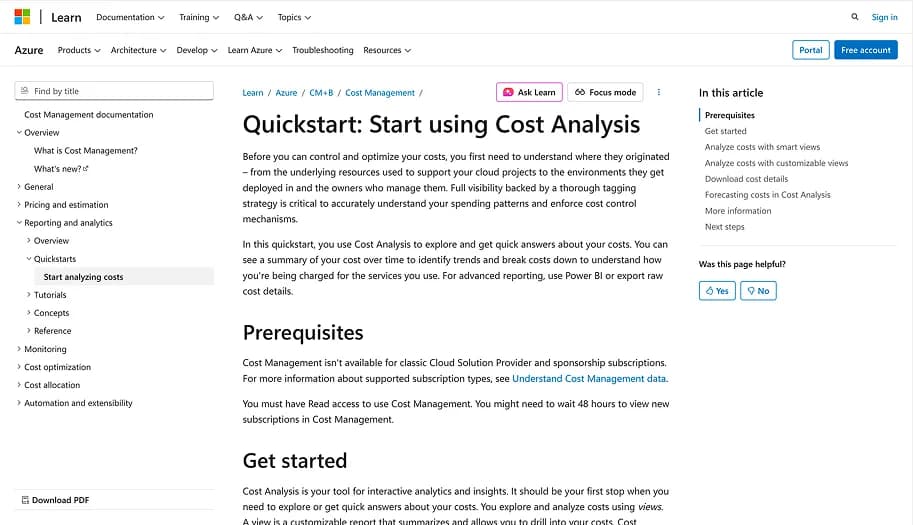
Azure Cost Analysis gives engineers and teams a detailed view of Azure spending across subscriptions, resource groups, and individual services. It supports flexible filtering by time range, scope, and granularity, making it easier to understand exactly where cloud spend is occurring.
Key Features:
Detailed cost breakdown by resource type, subscription, and resource group
Customizable filters based on time period, scope, granularity, and resource types
Historical cost tracking with period-over-period comparisons
Drill-down views for deeper visibility into resource usage and associated costs
Best For: Engineers and cloud administrators who need granular visibility into cloud spending and want to identify cost inefficiencies or optimization opportunities early.
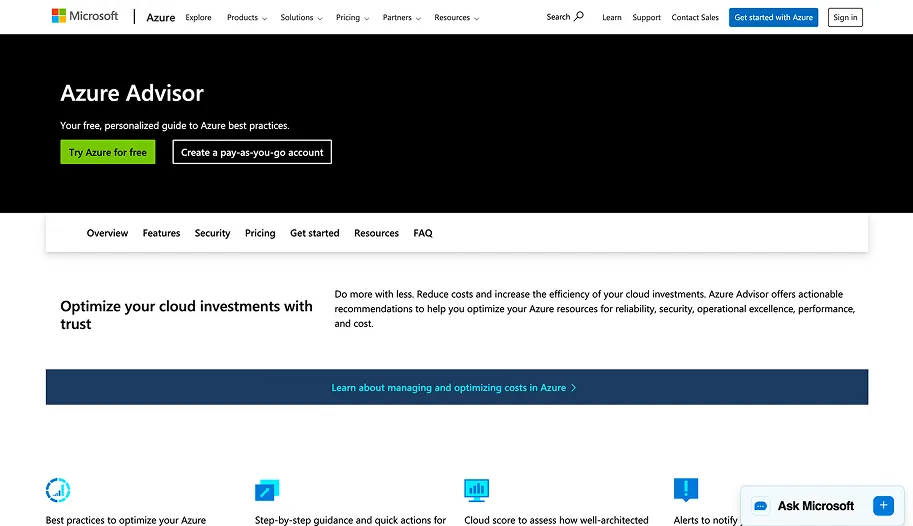
Azure Advisor is a recommendation engine that continuously analyzes Azure resources and surfaces actionable insights across cost, performance, security, and availability.
From a cost perspective, it focuses on identifying overprovisioned resources, unused services, and opportunities to move to more cost-efficient configurations.
Key Features:
Personalized cost optimization recommendations based on actual usage
Rightsizing suggestions for underutilized or oversized resources
Recommendations that also improve performance, availability, and security
Tight integration with Azure Cost Management for streamlined optimization
Best For: Engineers and cloud architects looking for automated, data-driven recommendations to reduce waste and improve efficiency with minimal manual effort.
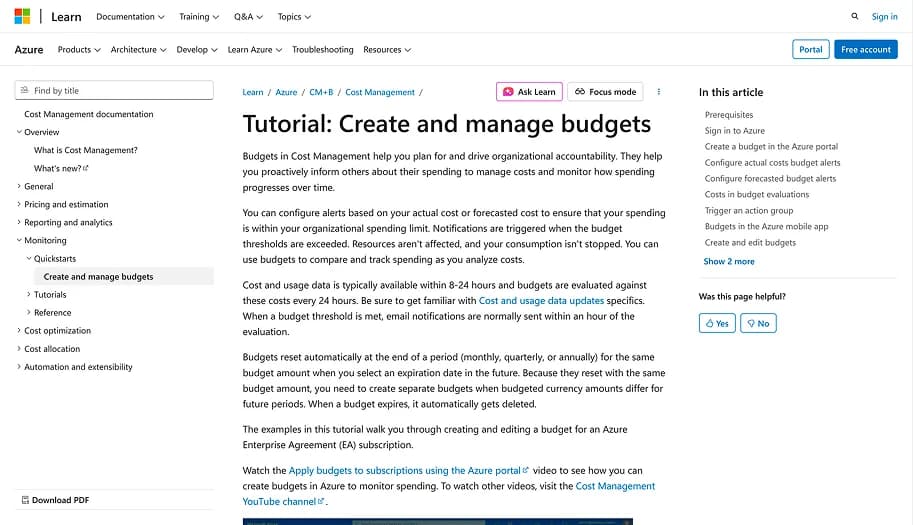
Azure Budgets enables teams to define spending limits and actively monitor cloud costs. Budgets can be applied at the subscription, resource group, or service level, with alerts triggered as spending approaches or exceeds defined thresholds.
Key Features:
Custom budgets at multiple scopes, including subscriptions, resource groups, and services
Automated alerts when spending reaches defined thresholds
Real-time tracking of actual spend against budget targets
Integration with Azure Cost Management for consistent monitoring and reporting
Best For: Cloud administrators, finance teams, and engineering leads who need to keep cloud spending under control across teams, projects, or environments.
Azure Price Calculator helps teams estimate costs before deploying workloads. By selecting services, configurations, and regions, it generates a detailed pricing estimate that supports informed decision-making during the planning phase.
Key Features:
Customizable cost estimates based on service selection, configuration, and region
Clear cost breakdowns across compute, storage, networking, and other services
Ability to compare pricing across different resource options and purchase models
Up-to-date pricing to reflect current Azure rates
Best For: Engineers, architects, and project managers who need accurate cost estimates during design and planning to ensure workloads stay within budget before deployment.
Azure Cost Management Exports allows organizations to automatically export cost and usage data for deeper analysis and reporting. Data can be scheduled and delivered in formats suitable for analytics and business intelligence tools.
Key Features:
Scheduled exports of cost and usage data to Azure Storage (daily, weekly, or monthly)
Export formats include CSV and Parquet for flexible downstream analysis
Detailed data covering usage, costs, and reserved instance information
Easy integration with BI tools and external financial systems
Best For: Engineering and finance teams that require detailed, automated cost reporting or need to integrate Azure cost data into custom analytics and reporting pipelines.
Selecting the right Azure pricing model is essential for maintaining cost efficiency and ensuring performance scalability. The most effective organizations integrate automation and intelligence into their cloud strategies, using tools like Azure Cost Management and Azure Advisor to continuously monitor and optimize usage.
However, as environments grow more complex, manual oversight becomes insufficient, and intelligent, autonomous solutions become necessary.
This is where autonomous optimization platforms likeSedai come in. By continuously analyzing usage patterns, predicting future needs, and making real-time adjustments, Sedai ensures that your Azure environment runs efficiently, keeping costs under control while maintaining performance.
Q1. What are the best ways to manage storage costs in Azure?
A1. To control storage costs, use Azure’s tiered storage options, such as Hot, Cool, and Archive, according to how frequently data is accessed. Implement lifecycle management policies to automatically move less frequently used data to lower-cost tiers, ensuring efficient storage spend without manual intervention.
Q2. Can I get custom pricing for Azure if my usage is extensive?
A2. Yes, large-scale enterprises can negotiate custom pricing through an Enterprise Agreement (EA), which offers volume discounts and tailored terms. Engage with Azure’s sales team to obtain a quote based on your specific consumption patterns and organizational requirements.
Q3. How can I automate the scaling of Azure resources based on application performance?
A3. Azure provides tools like Azure Monitor and Application Insights to set up automated scaling rules driven by key performance metrics. Combined with Azure Automation and Logic Apps, you can trigger scaling actions automatically based on conditions such as CPU utilization, memory usage, or request latency.
Q4. What steps can I take to ensure my Azure environment is compliant and cost-efficient?
A4. Regularly audit resource configurations against Azure’s cost optimization and compliance best practices. Use Azure Policy and Blueprints to enforce governance, ensuring resources remain secure, compliant, and cost-effective while maintaining operational performance.
Q5. What is the impact of Azure pricing changes on my existing services?
A5. Azure updates pricing periodically based on region, resource type, and usage patterns. Monitoring these changes in Azure Cost Management enables you to evaluate the impact on existing workloads and proactively adjust resource allocations or purchase models to avoid unexpected costs.