Sed is Sedai's conversational assistant for cloud and AI infrastructure, launched in August 2026. It allows users to ask questions in plain language about cloud spend, optimization opportunities, and resource settings. Sed provides concrete numbers, breakdowns, and actionable recommendations, and can execute actions directly or via Sedai's MCP integration. Note: Sed is currently in early access, and some autonomous action capabilities are not yet available to all customers. Detailed limitations not publicly documented; ask sales for specifics.
What are the main things I can do with Sed?
With Sed, you can:
Ask about cost and usage (e.g., "What was our total cloud spend last month?")
Find optimization opportunities prioritized by projected savings
See how much Sedai has saved you, with breakdowns by cloud and category
Build reports and charts instantly (cost reviews, trend charts, etc.)
Check your settings and activity, including executed actions and failures
Ask follow-up questions with context (e.g., drill into a specific cluster)
Get guided onboarding help for new accounts or clusters
Use Sed within your team's existing tools via Sedai's MCP integration
Note: Some features, such as autonomous action execution, may not be available to all users during early access. Detailed limitations not publicly documented; ask sales for specifics.
How does Sedai ensure safe and reliable cloud optimization?
Sedai is designed with safety as a core principle. It features continuous health verification, automatic rollbacks, and incremental changes to ensure that optimizations do not cause incidents or breach Service Level Objectives (SLOs). Unlike platforms that make all-at-once changes, Sedai performs gradual optimizations with real-time validation checks. Note: Best fit for teams prioritizing safety in automation; teams needing full manual control may want to consider alternatives.
Features & Integrations
What integrations does Sedai support?
Sedai integrates with 12 APMs (including Prometheus, Datadog, AWS CloudWatch, Azure Monitor, and Google Cloud Monitoring), Kubernetes autoscalers (HPA/VPA, Karpenter), IaC and CI/CD tools (GitHub, GitLab, Bitbucket, Terraform), ITSM tools (ServiceNow, PagerDuty, Jira), notification platforms, runbook automation, and optimizes resources across AWS, Azure, and GCP. Note: Integration availability may vary by environment; check documentation for specifics.
Can I use Sed within my existing tools?
Yes, Sed can be used within your team's existing tools through Sedai's MCP integration. Every skill built for Sed is exposed as an MCP tool, so you can access Sed's capabilities from agents like Claude Code, Copilot, or your own internal tooling without building custom integrations. Note: Some features may require MCP setup or specific permissions.
What technical documentation is available for Sedai and Sed?
Sedai provides comprehensive technical documentation, including getting started guides, Kubernetes optimization, Databricks optimization, and GPU optimization. These resources are available at docs.sedai.io/get-started. Note: Documentation may be updated as new features are released.
Pricing & Plans
How is Sedai priced?
Sedai uses a resource-based pricing model, where costs are determined by the resources optimized and the value delivered. For Kubernetes environments, tailored pricing is available. All costs are transparently outlined on Sedai's pricing page, and discounts from connected cloud billing accounts (e.g., Reserved Instances, Savings Plans) are factored into calculations. Note: For specific pricing details, contact Sedai sales or request a demo.
Is there a free trial or proof of value for Sedai?
Yes, Sedai offers a free Proof of Value and a 30-day free trial, allowing you to evaluate the platform's benefits before committing. Note: Trial availability and terms may vary; check with Sedai sales for current offers.
Implementation & Onboarding
How long does it take to implement Sedai or Sed?
Initial setup for general use cases can be completed in as little as 15 minutes using agentless or agent-based deployment. For AI Agent Optimization, implementation typically takes two to three weeks. For Databricks environments, setup can be completed in under 15 minutes. Note: Implementation time may vary based on environment complexity and integration needs.
What onboarding support is available for new users?
Sedai provides guided onboarding help, including step-by-step instructions, personalized onboarding sessions, extensive documentation, and access to a community Slack channel for real-time assistance. When onboarding a new account or cluster, Sed points you to the correct steps and resources. Note: Automated onboarding is not yet available; users follow guided steps.
Use Cases & Benefits
What problems does Sedai solve?
Sedai addresses runaway cloud costs (up to 50% savings), performance bottlenecks (reducing latency by up to 75%), operational toil (up to 6X productivity gains), proactive issue resolution (reducing failed customer interactions by up to 70%), and complexity in multi-cloud and hybrid environments. It also bridges misaligned priorities between engineering and finance teams. Note: Best fit for organizations seeking autonomous optimization; teams requiring only manual controls may want to consider alternatives.
Who can benefit from using Sedai and Sed?
Sedai is designed for IT/cloud operations managers, FinOps leaders, technology executives (CTO, CIO, VP Engineering), SREs, platform engineers, and organizations focused on cloud cost efficiency, performance, and operational productivity. It is used by companies in cybersecurity (e.g., Palo Alto Networks), security awareness (KnowBe4), beauty/personal care (Belcorp), travel/hospitality (Campspot), background check services (Inflection), and customer engagement software (Freshworks). Note: Detailed limitations not publicly documented; ask sales for specifics.
What business impact can customers expect from Sedai?
Customers can expect up to 50% reduction in cloud costs, up to 75% reduction in latency, up to 70% fewer failed customer interactions, and up to 6X productivity gains for engineering teams. These outcomes are based on real customer results, such as KnowBe4's 99.5% reduction in response time and Palo Alto Networks' $3.5 million in savings. Note: Results may vary by environment and implementation; see case studies for details.
Can you share specific customer success stories with Sedai?
Yes.
KnowBe4 achieved up to 50% cost savings and reduced average response time from 18.5 seconds to 80 milliseconds (99.5% reduction) using Sedai for AWS Lambda (case study).
Palo Alto Networks saved $3.5 million through Sedai's autonomous optimization (video case study).
Belcorp reduced AWS Lambda latency by 77%.
Campspot achieved a 34% reduction in AWS Lambda latency.
Freshworks optimized AWS Lambda, reducing latency and improving user experience (case study).
Note: Results are specific to each customer; see linked case studies for details.
Security & Compliance
What security and compliance certifications does Sedai have?
Sedai is SOC 2 certified, demonstrating adherence to stringent security requirements and industry standards for data protection and compliance. For more details, visit the Sedai Security page. Note: Additional certifications may be available; check with Sedai for the latest compliance status.
Limitations & Early Access
Are there any limitations to Sed or Sedai's features?
Sed is currently in early access, and some autonomous action capabilities are not yet available to all customers. Automated onboarding is not yet available; users follow guided steps. For a full list of current limitations, contact Sedai sales or support. Note: Feature availability may change as the product evolves.
Sed is Sedai's conversational assistant for cloud & AI infrastructure, launched in August 2026. In plain language, you can ask it to break down your spend, surface your savings, build a cost report, and investigate why a resource is not optimized. Sed answers with concrete numbers, analysis, and recommendations.
Key Takeaways
Sed breaks down your spend, builds reports and charts, and investigates your environment.
Every answer names a number, shows a breakdown by service, team, or resource, and tells you what to do next.
Sed can execute actions for you
You can do all of it from the tools your team already uses, through Sedai's MCP integration.
Note: Sed is currently in early access. Some autonomous action capabilities are not yet available to all customers.
We just launched Sed: your cloud & AI assistant. To help you get started, we wanted to bring you eight helpful things you can do with it, including 20 prompts that are ready to use.
We cover how you can:
Ask about cost and usage
Find optimization opportunities
See how much you’ve saved with Sedai
Build reports and charts instantly
Check Your Settings and Activity
Ask follow-up questions with context
Get guided onboarding help
Use Sedai’s MCP to use Sed across tools
What makes Sed integral to your optimization work is providing answers with specific numbers, the breakdown behind them, and what to do next. Most tools only provide more dashboards to sort through without telling you how to act on the issues. Sed not only shows you what’s wrong, but also how to move forward every time.
Ask About Cost and Usage
These are the questions you ask when investigating unexpected bills or pulling numbers for a monthly cost review. If you ask Sed any of these questions, it returns a figure and the breakdown behind it. So you don’t need to rebuild a dashboard view to answer a simple question.
"What was our total cloud spend last month, broken down by service? Show the top 10."
What Sed Returns: Total spend for last month with a top-10 services table (service, cost), rendered alongside a bar or pie chart. Response highlights the biggest cost drivers.
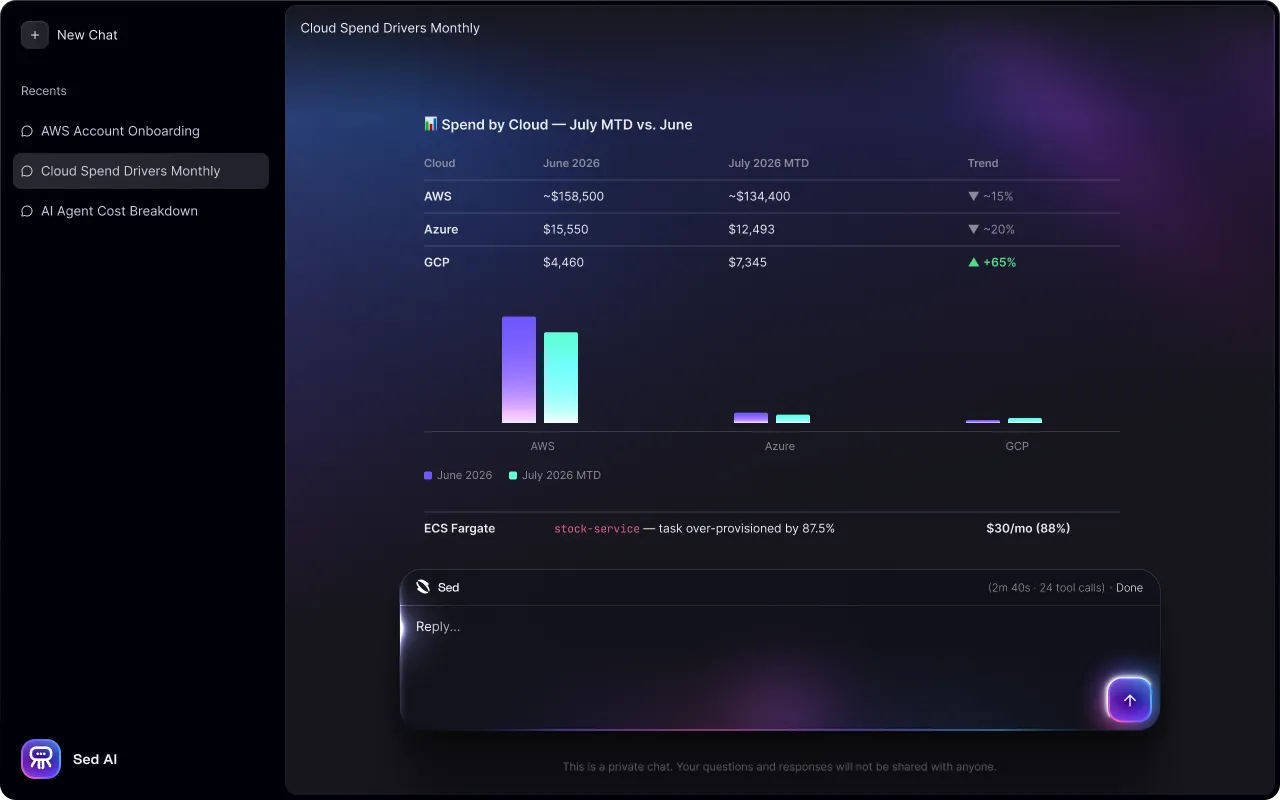
"Compare our AWS costs for Q1 vs Q2 this year. Which services grew the most?"
What Sed Returns: Side-by-side quarterly totals, per-service comparison with absolute and percentage growth, and a callout of the fastest-growing services. Likely a grouped bar chart.
"Show me the daily cost trend for the last 60 days. Were there any spikes or anomalies?"
What Sed Returns: A line chart of daily spend over 60 days with a summary of the overall trend. Any spike days are called out with dates, amounts, and the services responsible.
"Which region is the most expensive for us, and what's driving it?"
What Sed Returns: Spend by region with the top region identified, plus a breakdown of the top services within that region explaining the cost concentration.
"Break down last month's spend by our team tag."
What Sed Returns: Per-team cost table (and chart) built from tag data, including untagged spend if present.
Find Optimization Opportunities
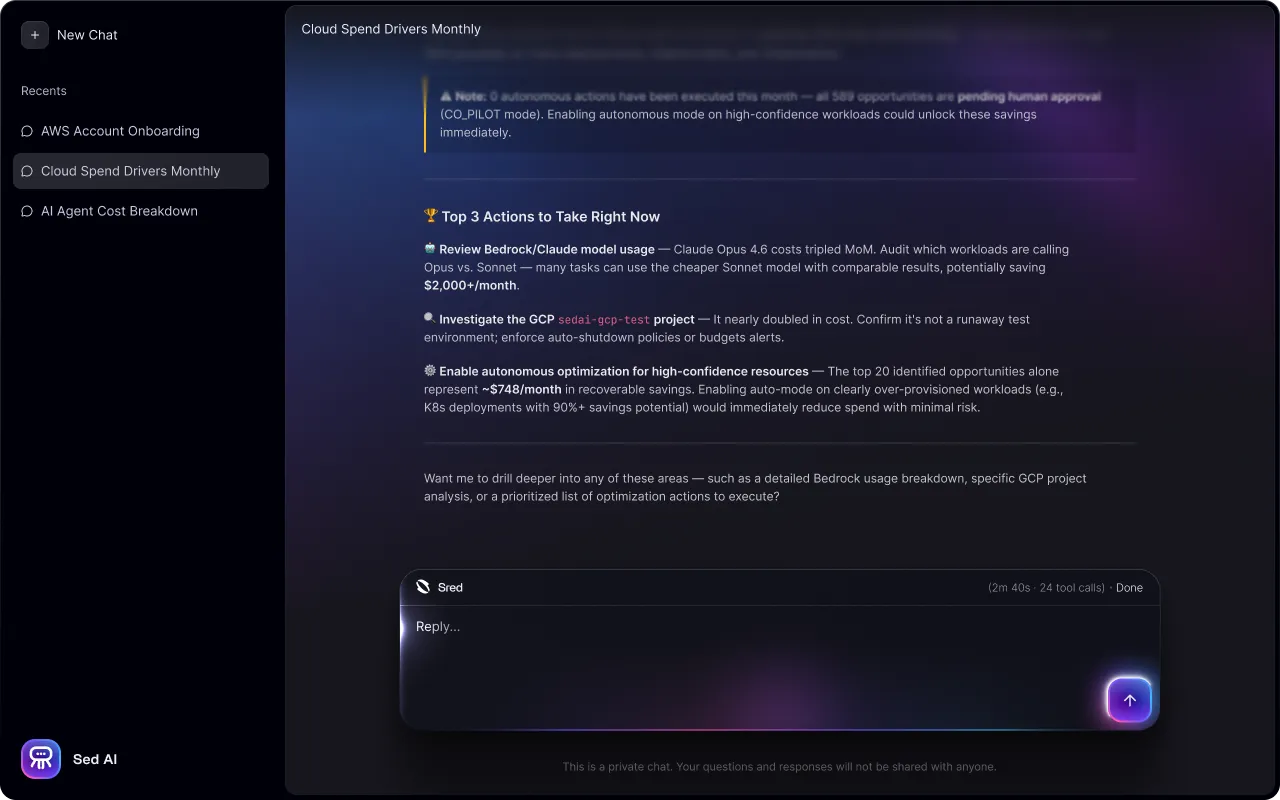
Sed surfaces where you can save, ranks it by projected savings, and ties a cost increase back to the recommendations that would offset it.
"What are our biggest optimization opportunities right now? Prioritize by projected savings."
What Sed Returns: Optimization opportunities ranked by projected monthly savings, with resource names, action types (e.g. rightsizing), and a total potential savings figure. It highlights quick wins.
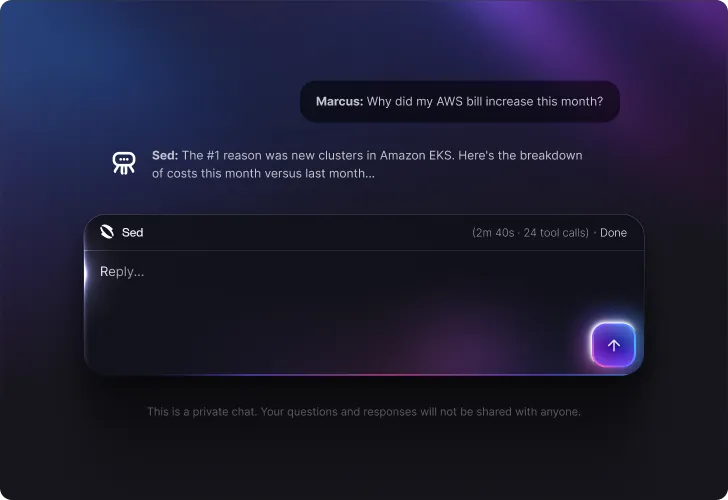
"Our cloud bill went up last month. Figure out what drove the increase and whether Sedai has recommendations that would offset it."
What Sed Returns: Month-over-month comparison identifying the services/accounts that drove the increase, including matching optimization recommendations with projected savings that would offset the growth.
"How much did we spend on EC2 last month, and what could Sedai save us on it?"
What Sed Returns: Last month's EC2 spend from billing data with EC2-related optimization opportunities with projected savings, expressed as a percentage of the EC2 bill.
See what Sedai has Saved You
This is the question for a renewal or a budget review to show what Sedai has already delivered. Sed reports the savings it has captured, broken down by cloud and category.
"How much has Sedai saved me so far this year?"
What Sed Returns: A year-to-date savings summary with key metrics, top optimization categories by cloud, the highest-impact pending opportunities in a table, and what's still on the table. It separates projected run-rate from realized savings.
Build Reports and Charts Instantly
You can prompt Sed to build reports and charts for you. Ask for a cost review or a specific chart and it assembles a chart, summary, and underlying data.
"Give me a monthly cost-review summary: total spend, top movers vs. the prior month, and the top 5 optimization opportunities we haven't acted on."
What Sed Returns: A full cost-review report, including:
Total spend with the month-over-month change
The top increasing and decreasing services with a chart
The top five pending optimizations
"Visualize our monthly spend for the last 6 months as a bar chart, with a line overlay for the month-over-month change."
What Sed Returns: A combined bar and line chart rendered inline with a short summary of the trend.
"Show a pie chart of last month's spend by cloud provider, then a table of the top service in each."
What Sed Returns: A pie chart of provider-level spend with a markdown table listing each provider's most expensive service.
Stop Building Reports by Hand
See how Sed builds monthly costs reports for you. One prompt required.
Check Your Settings and Activity
These prompts let you check how your environment is configured, which accounts are connected and in what mode, and why a resource is or is not being optimized.
"What has Sedai executed in the last week? Were there any failures?"
What Sed Returns: A summary of recent platform activity. This includes executed actions grouped by type and status plus any failures listed with the affected resources.
"Which cloud accounts are connected, and which have autonomous mode enabled?"
What Sed Returns: An account list grouped by cloud provider (i.e. AWS, Azure, GCP, or Kubernetes), showing an enabled/disabled status and which accounts run in autonomous vs. manual mode.
"Why isn't Sedai optimizing <resource-name>? What are its effective settings and where do they come from?"
What Sed Returns: A response with the resource's effective settings with the source level identified (Resource, Group, Account, or Default), and a diagnosis of which setting (e.g. manual mode, disabled optimization) is preventing action.
"Turn on autonomous mode for the <group-name> group."
What Sed Returns: When this feature ships, Sed will fetch the group's current settings, change the mode, and confirm the new mode.
Ask Follow-Up Questions with Context
Investigation rarely stops at one question. Sed keeps your conversation’s context, so you can drill in with follow-ups without restating what you already asked. The sequence below is one thread across three turns.
Turn 1: "List our Kubernetes clusters."
What Sed Returns: All connected clusters with names and status.
Turn 2: "What are the current settings for the first one?"
What Sed Returns: Settings for the first cluster from the previous answer without repeating the cluster name.
Turn 3: "What optimizations are pending for it?"
What Sed Returns: Pending optimizations filtered to that same cluster, showing the conversation context (cluster identity) continued across turns.
Get Guided Onboarding Help
When you bring a new account or cluster into Sedai, Sed points you toward the right place to add it and gives you the guidance to follow. This is directional guidance, not automated onboarding. It does not handle the process end-to-end yet, so today it surfaces the right link and the steps to follow.
"Help me onboard a new AWS account."
What Sed Returns: A step-by-step onboarding guide with a direct link to connect the account, what to expect, tips before you start, and a note that Sedai starts surfacing recommendations within hours.
Do Everything With Sed From Your Own Tools
Everything Sed does works inside Sedai, but it can also work within your own tools. Sed and Sedai's MCP integration share one capability layer. Every skill built for Sed is exposed as an MCP tool, so anything you can ask Sed, you can ask from the agent your team already works in.
You can pull cost drivers, surface savings, or check optimization status from Claude Code, Copilot, or your own internal tooling, without building a custom integration. Because Sed and the MCP integration run on the same set of skills, a new Sed skill shows up in MCP automatically.